Xbox Controller Not Connecting to PC – 13 Methods to Fix It
Quick Fix
If your Xbox controller won’t connect to PC, try this: Connect it with a USB cable first – this works immediately and updates the controller. For wireless, press the pairing button on the controller (small button on top) until the Xbox button flashes rapidly, then go to Windows Settings > Bluetooth > Add device. Make sure your controller firmware is updated through the Xbox Accessories app.
Why Xbox Controller Won’t Connect to PC
Xbox controllers are designed to work seamlessly with Windows PCs, but connection issues are common. The problem could be outdated drivers, Bluetooth pairing issues, USB cable problems, wireless adapter issues, or controller firmware that needs updating.
There are three ways to connect an Xbox controller to PC: USB cable, Bluetooth, or Xbox Wireless Adapter. Each method has different troubleshooting steps. Let’s cover all scenarios.
Method 1: Connect Via USB Cable
The most reliable connection method – and it also charges your controller.
- Get a micro-USB cable (Xbox One) or USB-C cable (Xbox Series X|S)
- Plug the cable into your controller
- Plug the other end into your PC
- The Xbox button should light up solid
- Windows should automatically detect it
- Test in a game or the Xbox Accessories app
Important: Some cables are charge-only and don’t transfer data. Use a cable you know works for data transfer.
Method 2: Update Controller Firmware
Outdated firmware causes many connection problems, especially with Bluetooth.
- Connect controller to PC via USB cable
- Download Xbox Accessories app from Microsoft Store
- Open the app – it should detect your controller
- If an update is available, click “Update”
- Wait for the update to complete (don’t disconnect)
- Restart the controller
After updating, try connecting wirelessly again.
Method 3: Pair Via Bluetooth
Xbox One S, Xbox One X, and Xbox Series controllers have built-in Bluetooth.
Check Bluetooth Compatibility:
- Original Xbox One controllers (2013-2015) do NOT have Bluetooth
- Xbox One S/X controllers (2016+) have Bluetooth
- Xbox Series X|S controllers have Bluetooth
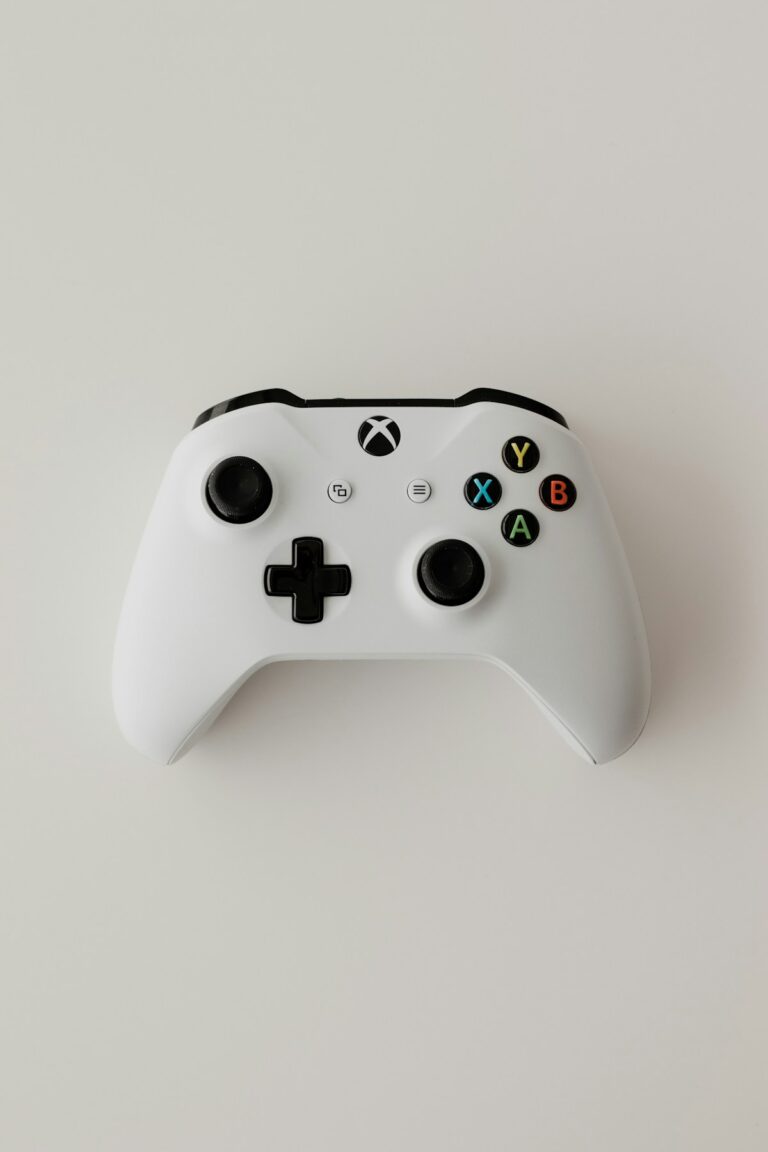
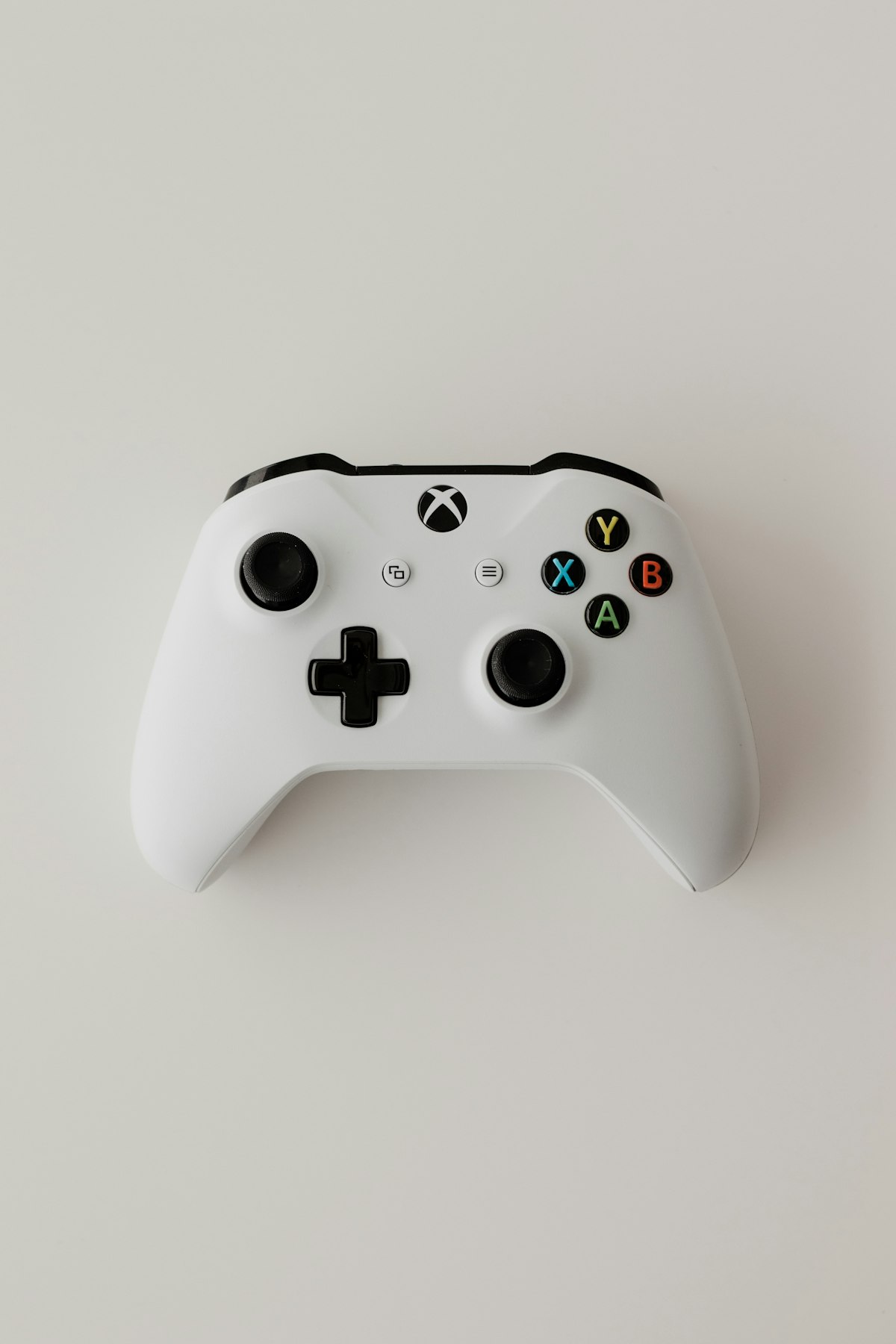
- Look for the plastic around the Xbox button – Bluetooth models have seamless plastic, not a separate piece
Pairing Steps:
- Turn on the controller (press Xbox button)
- Press and hold the pairing button on top of the controller (small button near LB)
- Hold until the Xbox button flashes rapidly
- On PC, go to Settings > Bluetooth & devices
- Click “Add device”
- Select “Bluetooth”
- Choose “Xbox Wireless Controller” when it appears
- Wait for pairing to complete
Method 4: Use Xbox Wireless Adapter
The official Xbox Wireless Adapter provides the best wireless experience.
- Plug the Xbox Wireless Adapter into a USB port
- Windows should install drivers automatically
- Press the button on the adapter until it blinks
- Press the pairing button on your controller
- They should sync within a few seconds
- Xbox button will glow solid when connected
Benefits over Bluetooth: lower latency, supports up to 8 controllers, works with older Xbox One controllers.
Method 5: Update Bluetooth Drivers
Outdated Bluetooth drivers can prevent controller pairing.
- Press Windows + X and select Device Manager
- Expand “Bluetooth”
- Right-click your Bluetooth adapter
- Select “Update driver”
- Choose “Search automatically for drivers”
- Restart your PC after updating
- Try pairing again
Method 6: Remove and Re-pair Controller
Corrupted pairing data can prevent connections.
- Go to Settings > Bluetooth & devices
- Find your Xbox controller in the list
- Click the three dots and select “Remove device”
- Turn off the controller
- Restart your PC
- Put controller in pairing mode (hold pairing button)
- Add device again from Bluetooth settings
Method 7: Run Bluetooth Troubleshooter
Windows can automatically detect and fix Bluetooth issues.
- Go to Settings > System > Troubleshoot
- Click “Other troubleshooters”
- Find “Bluetooth” and click “Run”
- Follow the on-screen instructions
- Apply any recommended fixes
- Try pairing again
Method 8: Check USB Cable Quality
Not all USB cables support data transfer.
- Try a different USB cable
- Use the cable that came with another device (phone charger cables often work)
- Avoid very long cables (over 6 feet can cause issues)
- Try different USB ports on your PC
- Avoid USB hubs – connect directly to the PC
Test the Cable:
- Connect your phone with the same cable
- Check if the PC recognizes the phone for file transfer
- If not, the cable is charge-only
Method 9: Update Windows
Windows updates include controller driver improvements.
- Go to Settings > Windows Update
- Click “Check for updates”
- Install all available updates
- Check “Optional updates” for driver updates
- Restart your PC
- Try connecting the controller
Method 10: Reinstall Controller Drivers
Corrupted drivers can cause connection failures.
- Connect controller via USB
- Open Device Manager
- Expand “Xbox Peripherals” or look under “Other devices”
- Right-click the Xbox controller
- Select “Uninstall device”
- Check “Delete the driver software” if available
- Unplug the controller
- Restart your PC
- Reconnect the controller – drivers will reinstall
Method 11: Disable Other Controllers
Other game controllers can sometimes conflict.
- Open Device Manager
- Expand “Human Interface Devices”
- Right-click any other game controllers
- Select “Disable device”
- Also check “Sound, video and game controllers”
- Disable any virtual/other controllers
- Try connecting Xbox controller
Method 12: Check Controller Battery
Low battery can cause connection issues, especially with Bluetooth.
- Replace AA batteries with fresh ones
- Or fully charge the rechargeable battery pack
- The controller needs adequate power for Bluetooth pairing
- A dying battery might turn on but fail to maintain connection
Method 13: Try a Different PC or Console
Test if the problem is the controller or your PC.
- Try connecting to an Xbox console
- Try connecting to another PC
- Try a different controller on your PC
- If controller works elsewhere, the issue is your PC’s Bluetooth or USB
- If controller fails everywhere, it may be defective
Preventing Future Connection Issues
- Keep controller firmware updated via Xbox Accessories app
- Keep Windows and drivers updated
- Use quality USB cables for wired connection
- Keep batteries charged for wireless
- Don’t have multiple controllers trying to pair simultaneously
- Keep controller and PC within reasonable Bluetooth range
FAQ
Why does my Xbox controller keep disconnecting from PC?
Frequent disconnections are usually caused by low battery, Bluetooth interference, USB power management, or outdated drivers. Replace batteries, move closer to PC, disable USB selective suspend in Power Options, and update controller firmware.
Can I use an Xbox 360 controller on PC?
Yes, but Xbox 360 controllers require the Xbox 360 Wireless Receiver for wireless connection (different from Xbox One/Series adapter). Wired Xbox 360 controllers work by just plugging them in. Windows 10/11 has built-in drivers.
Why is my Xbox controller blinking but not connecting?
Rapid blinking means the controller is in pairing mode but hasn’t found a device. Slow blinking means it’s searching for a previously paired device. Make sure your PC’s Bluetooth is on and in pairing mode, or that the wireless adapter is plugged in and its button pressed.
Do all Xbox One controllers work with Bluetooth?
No. Only Xbox One S, Xbox One X, and Xbox Series X|S controllers have Bluetooth. Original Xbox One controllers (2013-2015) require the Xbox Wireless Adapter or USB cable. Check if the plastic around the Xbox button is seamless (Bluetooth) or separate (no Bluetooth).
Why does my controller work wired but not wireless?
This usually indicates a Bluetooth driver issue, firmware needing update, or a problem with the controller’s wireless hardware. Update firmware via Xbox Accessories app while wired, update Bluetooth drivers, and try removing and re-pairing.
Can I connect Xbox controller to PC without adapter or Bluetooth?
Yes, using a USB cable. This is actually the most reliable method and also charges the controller. You need a micro-USB cable for Xbox One controllers or USB-C for Xbox Series controllers. Make sure the cable supports data transfer, not just charging.