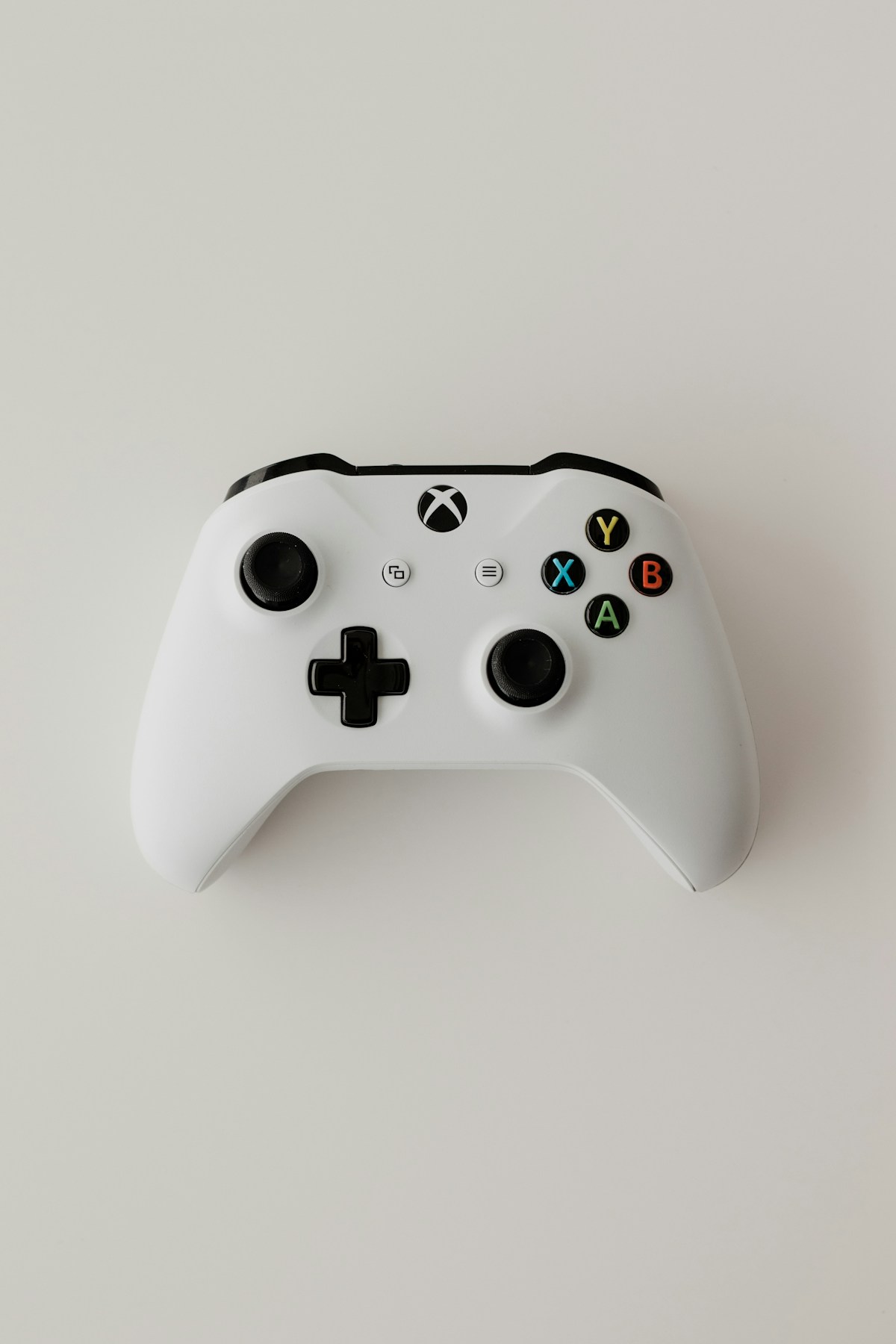
Xbox Controller Not Connecting? 10 Quick Fixes
Quick Fix
Press and hold the Xbox button on your controller for 6 seconds to turn it off, then press it again. For wireless connections, make sure the controller is within 20 feet of the console and try re-syncing by pressing the pairing button on both devices.
Understanding the Xbox Controller Not Connecting Issue
Xbox controller connection problems can occur with both wired and wireless setups across Xbox consoles and Windows PCs. The issue typically manifests as the controller failing to sync, constantly disconnecting, or not being recognized at all.
Common causes include outdated firmware, Bluetooth interference, low battery levels, corrupted drivers on PC, or hardware issues with the controller or console’s wireless module. Understanding the root cause helps determine the most effective solution.
This guide covers fixes for Xbox Series X|S, Xbox One, and PC connections via Bluetooth or the Xbox Wireless Adapter.
Method 1: Power Cycle Your Controller
- Press and hold the Xbox button on your controller for 6 seconds until it turns off
- Wait 10 seconds
- Press the Xbox button to turn it back on
- If using wireless, the controller should automatically reconnect to your last paired device
Method 2: Re-sync the Controller to Console
- Press the pairing button on your Xbox console (small button near USB ports)
- Within 20 seconds, press and hold the pairing button on your controller (top edge, near USB port)
- Hold until the Xbox button on the controller flashes rapidly, then stays solid
- The controller is now synced
Method 3: Replace or Recharge Batteries
- If using AA batteries, replace them with fresh ones
- For rechargeable battery packs, connect the controller via USB and charge for at least 30 minutes
- Check the battery indicator in the Xbox guide (Xbox button > Profile icon)
- Consider using the Play & Charge Kit for reliable power
Method 4: Use a USB Cable Connection
- Get a micro-USB (Xbox One) or USB-C (Xbox Series) cable
- Connect the controller directly to your console or PC
- The controller should be recognized immediately
- This bypasses wireless issues and confirms if the controller hardware works
Method 5: Update Controller Firmware
- Connect your controller via USB cable
- On Xbox: Go to Settings > Devices & connections > Accessories
- Select your controller and choose Update if available
- On PC: Open the Xbox Accessories app from Microsoft Store
- Click the three dots on your controller and select Update
Method 6: Update Xbox Console
- Press the Xbox button to open the guide
- Go to Profile & system > Settings > System > Updates
- Select Console update available if an update exists
- Wait for the update to download and install
- Restart your console and try connecting the controller again
Method 7: Fix PC Bluetooth Connection
- Open Settings > Bluetooth & devices
- Remove the Xbox controller from paired devices
- Turn on the controller and hold the pairing button until the Xbox button flashes quickly
- Click Add device > Bluetooth on your PC
- Select Xbox Wireless Controller from the list
- Update Bluetooth drivers if connection fails repeatedly
Method 8: Use Xbox Wireless Adapter for PC
- Plug the Xbox Wireless Adapter into a USB port
- Press the button on the adapter until it starts blinking
- Press the pairing button on your controller
- Wait for both to connect (lights become solid)
- This provides better range and lower latency than Bluetooth
Preventing Future Issues
- Keep your controller firmware updated regularly
- Use quality batteries or official rechargeable packs
- Store controllers in a cool, dry place
- Avoid dropping or physical damage to the controller
- Keep wireless devices away from sources of interference (routers, microwaves)
- Clean the USB port periodically with compressed air
FAQ
Why does my Xbox controller keep disconnecting?
Frequent disconnections are usually caused by low batteries, wireless interference, or outdated firmware. Try replacing batteries, moving closer to the console, and updating the controller firmware.
Can I connect my Xbox controller to multiple devices?
Yes, but controllers can only be actively connected to one device at a time. You’ll need to re-pair when switching between console and PC.
Why won’t my Xbox controller connect via Bluetooth?
Only controllers with the 3.5mm headphone jack (released after 2016) support Bluetooth. Older controllers require the Xbox Wireless Adapter for PC use.
How do I know if my controller needs new batteries?
Press the Xbox button and check the battery icon in the top-right corner of the guide. If it’s low or the controller behaves erratically, replace the batteries.
Can a faulty USB cable cause connection issues?
Yes, damaged or low-quality cables may not provide stable data connections. Use the official cable or a high-quality third-party USB cable.
Should I use Bluetooth or the Wireless Adapter for PC gaming?
The Xbox Wireless Adapter provides lower latency and better range, making it preferable for competitive gaming. Bluetooth works fine for casual play.



