Samsung TV Error Code 0-1 – 12 Ways to Fix Smart Hub
Quick Fix
Samsung TV error code 0-1 is a Smart Hub connection error. To fix it: Unplug your TV for 60 seconds, then plug it back in. If that doesn’t work, go to Settings > Support > Self Diagnosis > Reset Smart Hub. Enter the PIN (default: 0000) and wait for the reset to complete. This fixes error 0-1 in most cases.
What Is Samsung TV Error Code 0-1?
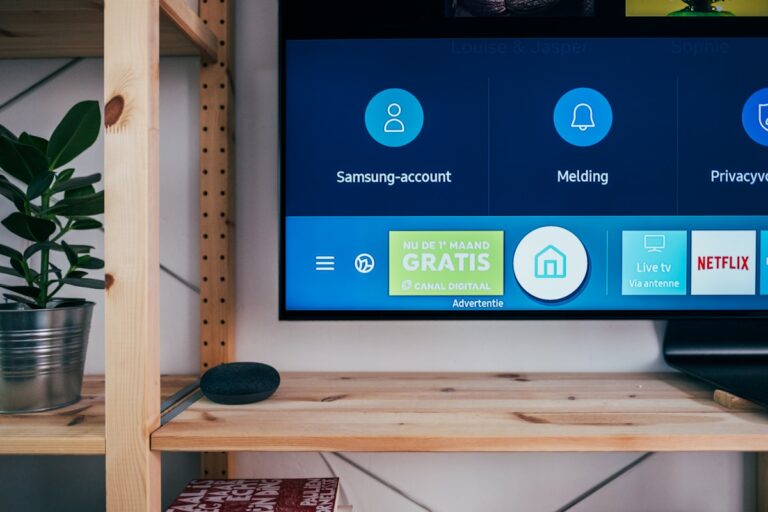
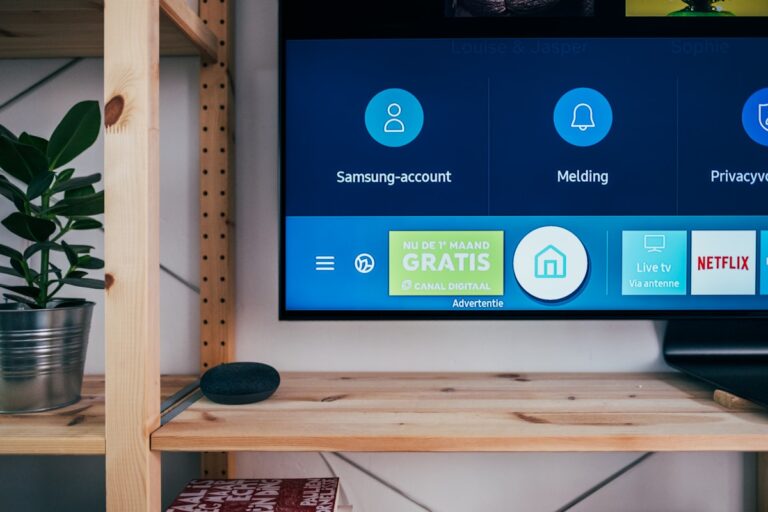
Error code 0-1 (also shown as error 0, error 1, or message code 0) appears when your Samsung Smart TV cannot connect to the Smart Hub server. Smart Hub is Samsung’s app platform that runs Netflix, YouTube, Disney+, and other streaming services. When this error occurs, you can’t access any apps.
Common causes include internet connection problems, Smart Hub server outages, outdated TV firmware, corrupted Smart Hub data, or DNS issues. Let’s fix it step by step.
Method 1: Power Cycle Your Samsung TV
A full power cycle clears temporary glitches and refreshes the connection.
- Turn off your Samsung TV
- Unplug the TV from the wall outlet
- Wait 60 seconds (this drains residual power)
- While unplugged, press and hold the power button on the TV for 30 seconds
- Plug the TV back in
- Turn on the TV and try Smart Hub
This simple fix resolves error 0-1 for many users.
Method 2: Check Your Internet Connection
Error 0-1 often indicates a network problem.
- Go to Settings > General > Network > Network Status
- Check if the TV shows “Connected to Internet”
- If not connected, select Network Settings and reconnect to WiFi
- Test the connection by opening Network Status again
If WiFi shows connected but no internet:
- Restart your router (unplug for 30 seconds)
- Move the router closer to the TV
- Try connecting via Ethernet cable for more stable connection
Method 3: Reset Smart Hub
Corrupted Smart Hub data causes error 0-1. Resetting clears this data.
- Press the Home button on your remote
- Go to Settings (gear icon)
- Select Support
- Select Self Diagnosis
- Select Reset Smart Hub
- Enter PIN when prompted (default is 0000)
- Wait for Smart Hub to reset (takes 2-3 minutes)
- Re-accept the terms and conditions
- Sign back into your Samsung account
Note: You’ll need to log back into all your streaming apps (Netflix, etc.)
Method 4: Change DNS Settings
Samsung’s default DNS can have issues. Using Google DNS often fixes error 0-1.
- Go to Settings > General > Network > Network Status
- Select IP Settings
- Change DNS Setting from Auto to Manual
- Enter DNS Server: 8.8.8.8
- Select OK
- Restart the TV
- Try opening Smart Hub
Alternative DNS servers: Google (8.8.4.4), Cloudflare (1.1.1.1)
Method 5: Update TV Firmware
Outdated firmware can cause Smart Hub connection errors.
- Go to Settings > Support > Software Update
- Select Update Now
- If an update is available, let it download and install
- The TV will restart automatically
- Try Smart Hub after the update
If you can’t update via internet:
- Go to samsung.com/support
- Enter your TV model number
- Download the latest firmware to a USB drive
- Insert USB into TV and go to Software Update > Update Now
Method 6: Check Samsung Server Status
Sometimes error 0-1 is caused by Samsung’s servers being down.
- Check downdetector.com/status/samsung
- Look for Samsung Smart TV outage reports
- Check Samsung’s official Twitter for service announcements
- If servers are down, wait and try again later
Server outages usually resolve within a few hours.
Method 7: Sign Out and Back Into Samsung Account
Account authentication issues can trigger error 0-1.
- Go to Settings > General > System Manager > Samsung Account
- Select your account
- Select Sign Out
- Restart the TV
- Go back to Samsung Account
- Select Sign In
- Enter your credentials
- Try Smart Hub
Method 8: Clear Smart Hub Cache
Cached data can become corrupted and cause errors.
- Go to Settings > Support > Self Diagnosis
- Select TV Device Manager
- Select Clean Now or Manage Storage
- Clear cache for individual apps or all apps
- Restart the TV
Method 9: Set Correct Date and Time
Incorrect date/time can cause authentication failures with Smart Hub.
- Go to Settings > General > System Manager > Time
- Select Clock
- Enable Auto for automatic time setting
- Or set the correct date, time, and time zone manually
- Restart the TV
Method 10: Factory Reset (Last Resort)
If nothing else works, a factory reset will fix most software issues.
- Go to Settings > General > Reset
- Enter your PIN (default: 0000)
- Select Reset
- The TV will restart and show initial setup
- Complete the setup process
- Reconnect to WiFi
- Sign into your Samsung account
Warning: Factory reset erases all settings, apps, and preferences. You’ll need to set up everything again.
Method 11: Check Router Settings
Some router configurations block Smart Hub connections.
Router settings to check:
- Disable MAC address filtering or add TV’s MAC address
- Ensure UPnP is enabled
- Check that ports 80, 443, and 8080 aren’t blocked
- Disable any parental controls that might block the TV
- Try assigning a static IP to the TV
Method 12: Use Ethernet Instead of WiFi
A wired connection is more stable and can bypass WiFi issues.
- Connect an Ethernet cable from your router to the TV
- Go to Settings > General > Network > Network Status
- The TV should automatically detect the wired connection
- Try Smart Hub
Samsung TV Models Affected by Error 0-1
This error appears on most Samsung Smart TV models including:
- Samsung QLED (Q60, Q70, Q80, QN85, QN90 series)
- Samsung Crystal UHD (TU7000, TU8000, AU8000, BU8000)
- Samsung Neo QLED (QN85A, QN90A, QN800B)
- Samsung The Frame
- Samsung Lifestyle TVs
- Older Samsung Smart TVs (2017-2023 models)
Preventing Error 0-1 in the Future
- Keep your TV firmware updated
- Use a stable internet connection (Ethernet preferred)
- Restart your TV weekly to clear temporary data
- Don’t install too many apps (can slow Smart Hub)
- Use a reliable DNS server (Google: 8.8.8.8)
FAQ
What does Samsung error code 0-1 mean?
Error code 0-1 means your Samsung TV cannot connect to the Smart Hub server. It’s typically caused by internet connection issues, server outages, corrupted Smart Hub data, or DNS problems. The error prevents access to all streaming apps.
Why does my Samsung TV keep showing error 0-1?
Recurring error 0-1 usually indicates an underlying network issue. Check your internet stability, try using Ethernet instead of WiFi, change DNS settings to 8.8.8.8, and ensure your router isn’t blocking the TV’s connection.
Will resetting Smart Hub delete my apps?
Yes, resetting Smart Hub removes all downloaded apps and your login information. You’ll need to re-download apps and sign back into streaming services like Netflix, Disney+, etc. Your Samsung account itself is not affected.
How do I fix Samsung Smart Hub not loading?
Power cycle the TV (unplug for 60 seconds), check internet connection, reset Smart Hub through Settings > Support > Self Diagnosis, change DNS to 8.8.8.8, and update TV firmware. These steps fix most Smart Hub loading issues.
Is error 0-1 a hardware problem?
No, error 0-1 is almost always a software or network issue, not hardware. It can be fixed through the methods above. If error persists after factory reset and the TV works fine for regular channels, the issue is connectivity-related.
Can I use my Samsung TV without Smart Hub?
Yes, you can still watch regular TV channels, use HDMI devices (gaming consoles, streaming sticks), and access most TV features. Smart Hub is only needed for built-in streaming apps. You could use a Roku or Fire TV Stick as an alternative.