Nintendo Switch Wont Turn On? 11 Ways to Fix It
Quick Fix
If your Nintendo Switch won’t turn on, try this: Hold the Power button for 15-20 seconds to force a hard reset. Then press Power again to turn it on. If nothing happens, connect the charger and wait 30 minutes – the battery may be completely drained. A solid green light on the dock means it’s charging. These steps fix most Switch power issues.
Why Your Nintendo Switch Won’t Turn On
A Nintendo Switch that won’t power on is alarming, but it’s usually fixable. The most common causes are a completely drained battery, a frozen system that needs a hard reset, charging issues, or software crashes. In rare cases, it could be hardware damage.
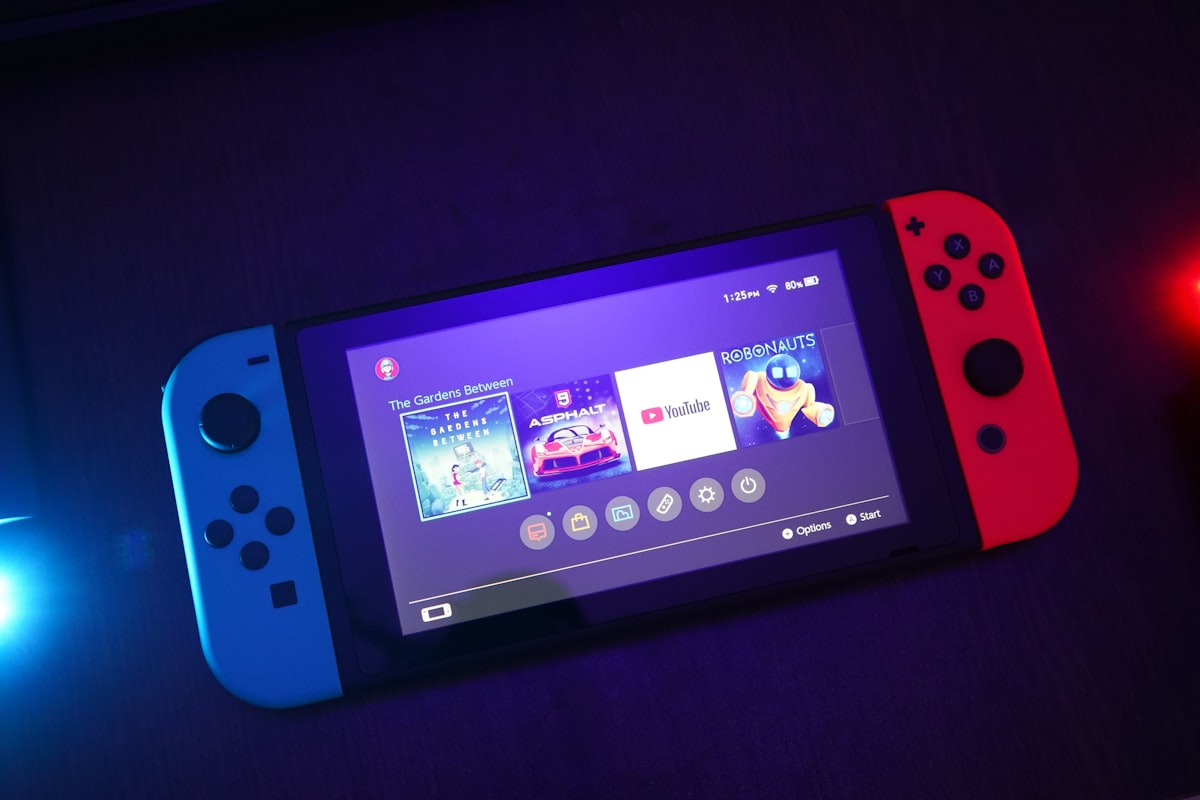
The Switch has different behavior depending on whether you’re using it in handheld mode or docked. Understanding these differences helps diagnose the problem. Let’s go through all the solutions from simplest to more advanced.
Method 1: Perform a Hard Reset
The Switch may be frozen, not actually off. A hard reset forces it to restart.
- Hold the Power button for 15-20 seconds
- The screen should go completely black
- Wait 10 seconds
- Press the Power button once to turn it on
- Wait up to 30 seconds for the Nintendo logo to appear
This is different from a normal shutdown – holding the button this long forces even a frozen system to reset.
Method 2: Charge the Battery
If the battery is completely dead, the Switch won’t respond at all – not even showing a charging icon.
- Connect the official Nintendo AC adapter directly to the Switch (not through the dock)
- Make sure you’re using the original charger (15V/2.6A)
- Leave it charging for at least 30 minutes
- Try turning it on by pressing the Power button
- If still nothing, charge for 2-3 hours before trying again
Important: Third-party chargers may not provide enough power. Always use the official Nintendo adapter when troubleshooting.
Method 3: Check the AC Adapter
The charger itself might be faulty.
Test the Adapter:
- Try a different wall outlet
- Check the cable for damage or fraying
- Ensure the USB-C connector is clean and undamaged
- Try charging a different device with the same adapter (if compatible)
- If possible, test with a different official Nintendo adapter
Check for Indicator Lights:
- When charging via dock: green light on dock = receiving power
- When charging handheld: battery icon should appear on screen after a few minutes
- No lights anywhere = adapter or outlet issue
Method 4: Try Charging Through the Dock
Sometimes the USB-C port on the Switch has issues, but the dock connection works differently.
- Place the Switch in the dock
- Connect the AC adapter to the dock
- Check for the green LED on the dock
- Leave it docked for 30+ minutes
- Try turning it on while still docked
- Press Power button on the Switch, not the Home button on a controller
Method 5: Disconnect All Accessories
Accessories can sometimes interfere with the power-on process.
- Remove the Switch from the dock
- Detach both Joy-Con controllers
- Remove any game cards
- Remove any microSD cards
- Disconnect any USB devices
- Try the hard reset again (hold Power 15 seconds)
- Press Power to turn on
Method 6: Check the Power Button
The power button itself might be stuck or damaged.
- Look at the Power button on top of the Switch
- Press it several times to check if it feels stuck
- Clean around the button with a dry toothbrush
- Use compressed air to blow out any debris
- Make sure nothing is blocking the button
If the button feels physically broken or doesn’t click, the Switch may need repair.
Method 7: Boot Into Maintenance Mode
Maintenance Mode can help if the Switch is stuck during boot.
- Power off completely (hold Power 15 seconds)
- Hold both Volume Up and Volume Down buttons
- While holding them, press the Power button
- Keep holding Volume buttons until Maintenance Mode appears
- Select “Update System” if available
- Or select “Initialize Console Without Deleting Save Data”
Warning: Full initialization will delete all data. Try the update option first.
Method 8: Let the Battery Fully Drain
If the Switch is frozen in a weird state, letting the battery die completely can reset it.
- Disconnect all power sources
- Leave the Switch alone for 24-48 hours
- The battery will fully drain
- Connect the charger and charge for 3+ hours
- Try turning it on
This is a last resort but can fix stubborn software freezes.
Method 9: Check for Physical Damage
Inspect your Switch for signs of damage that could prevent it from turning on.
- Check the screen: Look for cracks or water damage indicators
- Check USB-C port: Look for bent pins, debris, or corrosion
- Check for swelling: A bulging back could indicate battery damage
- Check vents: Blocked vents can cause overheating shutdowns
- Water damage: Look in the game card slot for a red/pink indicator
If you find physical damage, professional repair is recommended.
Method 10: Try a Different Dock
If the Switch only fails to turn on when docked, the dock might be the problem.
- Remove Switch from dock
- Try turning on in handheld mode
- If it works handheld but not docked, the dock may be faulty
- Check dock’s USB-C connector for damage
- Try a friend’s dock if possible
- Contact Nintendo for dock replacement if under warranty
Method 11: Contact Nintendo Support
If nothing works, you may need professional repair.
Warranty Repair:
- Standard warranty: 12 months from purchase
- Keep your receipt as proof of purchase
- Nintendo repairs under warranty are free
How to Contact:
- Visit nintendo.com/consumer/repair
- Sign in with your Nintendo Account
- Select “Set Up a Repair”
- Describe the issue
- Ship the Switch to Nintendo (they provide a shipping label)
- Typical repair time: 1-2 weeks
Switch Lite Specific Tips
The Switch Lite has some differences:
- No dock support – must charge via USB-C directly
- Hard reset is the same (hold Power 15 seconds)
- Battery is smaller, drains faster, takes longer to show charging
- No detachable Joy-Cons to remove
- Same Maintenance Mode process works
Preventing Future Power Issues
- Don’t let the battery drain to 0% regularly
- Use the official Nintendo charger
- Avoid cheap third-party docks (can damage the Switch)
- Keep the Switch updated to latest firmware
- Don’t expose to extreme temperatures
- Clean the USB-C port periodically with compressed air
FAQ
Why won’t my Switch turn on even when plugged in?
If the battery is completely dead, the Switch won’t show any signs of life for the first 10-15 minutes of charging. Leave it plugged in for at least 30 minutes before trying to turn it on. Also verify the outlet works and try a different charger if possible.
How do I know if my Switch is charging?
In handheld mode, a battery icon appears on the top-left of the screen after a few minutes of charging. When docked, the dock’s green LED indicates power. If the Switch is completely dead, you may not see any indicator for 15+ minutes.
Can a dead Switch battery be replaced?
Yes, but Nintendo doesn’t officially support user battery replacement. You can send it to Nintendo for repair (around $100 out of warranty) or find a third-party repair shop. DIY replacement is possible but voids the warranty and requires special tools.
Why does my Switch turn on but show a black screen?
A black screen usually means the Switch is on but the display isn’t working. Try holding Power for 15 seconds to hard reset. Check if it outputs to TV when docked. If the screen is cracked or damaged, you’ll need screen replacement.
Will I lose my save data if my Switch won’t turn on?
Save data is stored on the internal memory, not on game cards. If you have Nintendo Switch Online, saves are backed up to the cloud. If the Switch can be repaired without replacing the memory, your saves should be intact. Nintendo repair typically preserves data when possible.
How long does a Nintendo Switch battery last before needing replacement?
Nintendo Switch batteries typically last 3-5 years with normal use before significant degradation. Signs of a dying battery include much shorter play time, not holding charge, or the issues described in this article. Battery replacement extends the console’s life.