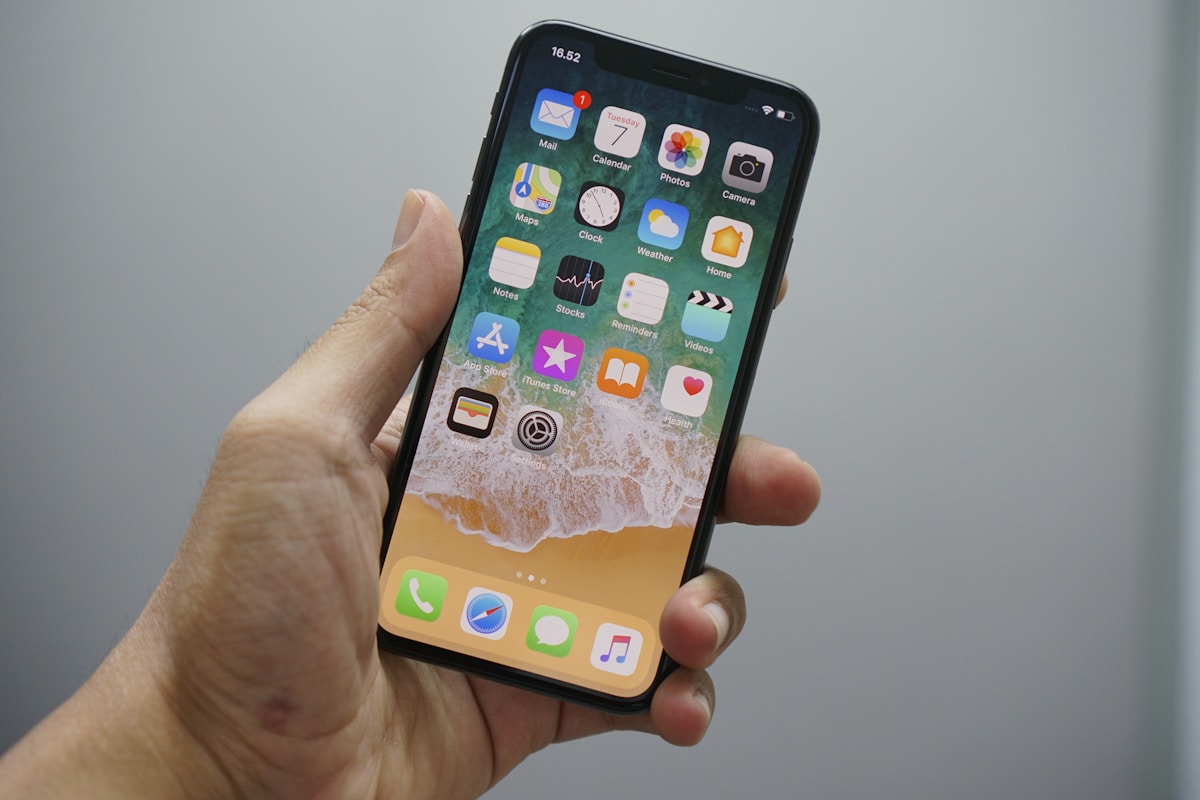
iPhone Screen Flickering? 10 Quick Fixes
Quick Fix
Force restart your iPhone by pressing and quickly releasing Volume Up, then Volume Down, then holding the Side button until the Apple logo appears. Also disable Auto-Brightness in Settings > Accessibility > Display & Text Size to see if that resolves the flickering.
Understanding the iPhone Screen Flickering Issue
iPhone screen flickering can appear as random flashes, lines across the display, brightness fluctuations, or the screen turning on and off. This issue affects various iPhone models and can be caused by software glitches or hardware problems.
Software causes include iOS bugs, problematic apps, or conflicting display settings. Hardware causes may include a loose display connector, damaged screen, or issues with the GPU. Identifying whether the problem is software or hardware helps determine the right fix.
This guide covers solutions for all iPhone models running iOS 15 and later, with methods arranged from simplest to more advanced.
Method 1: Force Restart Your iPhone
- Quickly press and release the Volume Up button
- Quickly press and release the Volume Down button
- Press and hold the Side button until the Apple logo appears
- Release the button and wait for your iPhone to restart
- This clears temporary software glitches that may cause flickering
Method 2: Disable Auto-Brightness
- Open Settings on your iPhone
- Go to Accessibility > Display & Text Size
- Scroll down and toggle off Auto-Brightness
- Manually adjust brightness using Control Center
- Test if the flickering stops with this setting disabled
Method 3: Turn Off True Tone
- Open Settings > Display & Brightness
- Toggle off True Tone
- This disables automatic color temperature adjustment
- Some users report flickering related to True Tone sensor issues
Method 4: Reduce Motion and Transparency
- Go to Settings > Accessibility > Motion
- Enable Reduce Motion
- Go back and tap Display & Text Size
- Enable Reduce Transparency
- These settings reduce GPU load and may stop flickering
Method 5: Update iOS
- Open Settings > General > Software Update
- If an update is available, tap Download and Install
- Connect to Wi-Fi and plug in your charger
- Wait for the update to complete
- Apple often fixes display bugs in iOS updates
Method 6: Check for Problematic Apps
- Note if flickering happens only in specific apps
- Update all apps in the App Store > Profile > Update All
- Delete recently installed apps that coincide with the flickering starting
- Reinstall apps one at a time to identify the culprit
- Report persistent issues to app developers
Method 7: Reset All Settings
- Go to Settings > General > Transfer or Reset iPhone
- Tap Reset > Reset All Settings
- Enter your passcode when prompted
- This resets display, network, and other settings without deleting data
- Reconfigure your preferences after the reset
Method 8: Factory Reset via Recovery Mode
- Back up your iPhone to iCloud or computer first
- Connect iPhone to computer with iTunes/Finder open
- Force restart while connected (Volume Up, Volume Down, hold Side button)
- Keep holding until you see the recovery mode screen
- Choose Restore to completely reinstall iOS
- Set up as new or restore from backup
Preventing Future Issues
- Keep iOS updated to the latest version
- Avoid exposing your iPhone to extreme temperatures
- Use a protective case to prevent physical damage
- Don’t install beta software on your primary device
- Regularly restart your iPhone to clear memory
- Only download apps from the official App Store
FAQ
Is iPhone screen flickering a hardware problem?
It can be either. If the flickering persists after trying all software fixes including a factory reset, it’s likely a hardware issue requiring professional repair.
Does screen flickering damage my iPhone?
The flickering itself doesn’t cause additional damage, but it may indicate an underlying issue that could worsen over time. Address it promptly.
Will Apple fix screen flickering for free?
If your iPhone is under warranty or AppleCare+ and the issue is a manufacturing defect, Apple may repair it for free. Out-of-warranty repairs will have a cost.
Can a screen protector cause flickering?
Poor quality or improperly installed screen protectors can interfere with the display. Try removing it temporarily to test.
Why does my iPhone screen flicker when charging?
This may indicate a faulty charger or cable causing electrical interference. Use Apple-certified charging accessories.
Does low battery cause screen flickering?
In rare cases, very low battery can cause display issues. Charge your iPhone fully and see if the problem persists.



