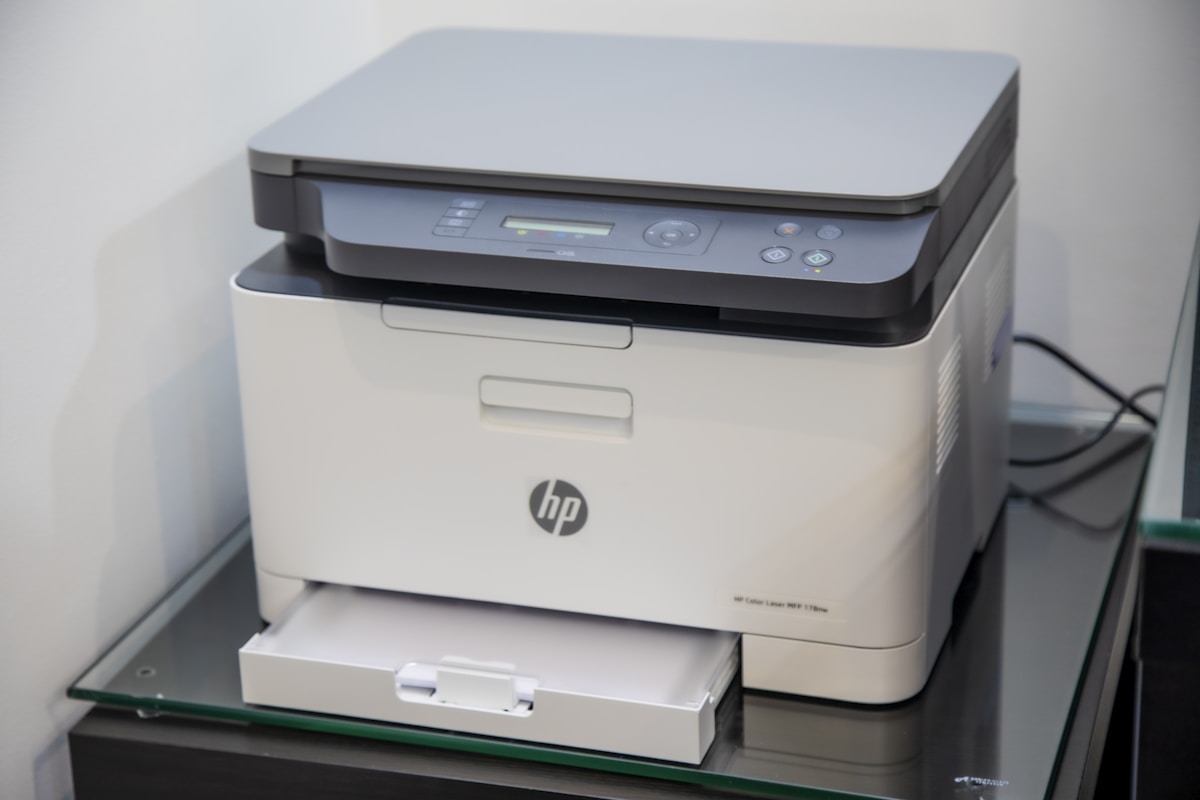
HP Printer Not Printing? 10 Quick Fixes
Quick Fix
Turn your HP printer off, wait 30 seconds, and turn it back on. Then clear the print queue by going to Settings > Devices > Printers & Scanners > your printer > Open Queue > Cancel All Documents. Try printing again.
Understanding HP Printer Problems
When your HP printer won’t print, jobs might get stuck in the queue, the printer shows as offline, or nothing happens when you click print. This affects all printer types – inkjet, laser, and all-in-ones.
Common causes include connection issues (USB or WiFi), outdated drivers, stuck print queue, and low or empty ink/toner. Sometimes Windows updates can disrupt printer functionality.
HP printers are generally reliable, and most issues can be resolved without professional service using these methods.
Method 1: Restart Printer and Computer
- Turn off your HP printer using the power button
- Unplug the power cord from the printer
- Wait 60 seconds
- Plug the power cord back in
- Turn the printer on
- Restart your computer
- Try printing a test page
Method 2: Clear Print Queue
- Press Windows + I to open Settings
- Go to Bluetooth & devices > Printers & scanners
- Click on your HP printer
- Click Open print queue
- Click the three dots > Cancel all
- Wait for queue to clear
- Try printing again
Method 3: Set Printer as Default
- Go to Settings > Bluetooth & devices > Printers & scanners
- Turn off Let Windows manage my default printer
- Click on your HP printer
- Click Set as default
- The printer should now show as default
- Try printing your document
Method 4: Check Printer Connection
- USB: Unplug and replug the USB cable firmly
- Try a different USB port on your computer
- Try a different USB cable if available
- WiFi: Check printer’s WiFi indicator light
- Print a network configuration page from printer menu
- Ensure printer is on the same network as computer
- Restart your router if WiFi connection is unstable
Method 5: Run HP Print and Scan Doctor
- Download HP Print and Scan Doctor from HP’s website
- Run the downloaded tool
- Select your printer from the list
- Click Fix Printing
- The tool will diagnose and fix common issues
- Follow any additional prompts
- Test printing after repairs complete
Method 6: Update or Reinstall Drivers
- Press Windows + X > Device Manager
- Expand Print queues
- Right-click your HP printer > Update driver
- Select Search automatically
- If that doesn’t help, right-click > Uninstall device
- Download latest driver from HP’s support website
- Install the downloaded driver and restart
Method 7: Restart Print Spooler Service
- Press Windows + R, type
services.msc, press Enter - Find Print Spooler in the list
- Right-click it and select Restart
- If it’s stopped, click Start
- Double-click Print Spooler
- Set Startup type to Automatic
- Click OK and try printing
Method 8: Check Ink/Toner Levels
- Check the printer’s display panel for ink/toner warnings
- Open HP Smart app or printer software on your computer
- Look for ink/toner level indicators
- Replace any empty or low cartridges
- After replacing, run a printhead cleaning if print quality is poor
- Try printing a test page
Preventing Future Printing Issues
- Keep printer drivers updated
- Print at least once a week to prevent ink from drying
- Use genuine HP ink/toner cartridges
- Keep the printer firmware updated
- Don’t let paper sit in tray for months – it can absorb moisture
FAQ
Why does my HP printer say offline?
Offline status means Windows can’t communicate with the printer. Check USB/WiFi connections, restart both devices, and ensure the printer isn’t in sleep mode. Right-click the printer and select “Use Printer Online” if that option appears.
Why does my printer print blank pages?
Blank pages usually indicate clogged printheads or empty ink. Run the printhead cleaning utility from HP printer software. If ink levels show full but pages are blank, the cartridges may be defective or dried out.
Can I print from my phone to HP printer?
Yes, install the HP Smart app on your phone. Ensure your phone and printer are on the same WiFi network. The app will find your printer and allow you to print photos and documents.
Why is my HP printer printing slowly?
Slow printing can be caused by high-quality print settings, WiFi congestion, or low memory on the printer. Try printing in draft mode, connect via USB, or restart the printer to clear its memory.
Why won’t my printer print in color?
Check that color printing is selected in print settings (not grayscale). Verify color ink cartridges aren’t empty. Some documents default to black-and-white – check the application’s print settings.
Should I turn my printer off when not in use?
For inkjet printers, leaving them on in sleep mode is better – it runs periodic maintenance to prevent clogs. Laser printers can be turned off without issues. Most modern printers use minimal power in sleep mode.




