AirPods Not Connecting? 10 Quick Fixes
Quick Fix
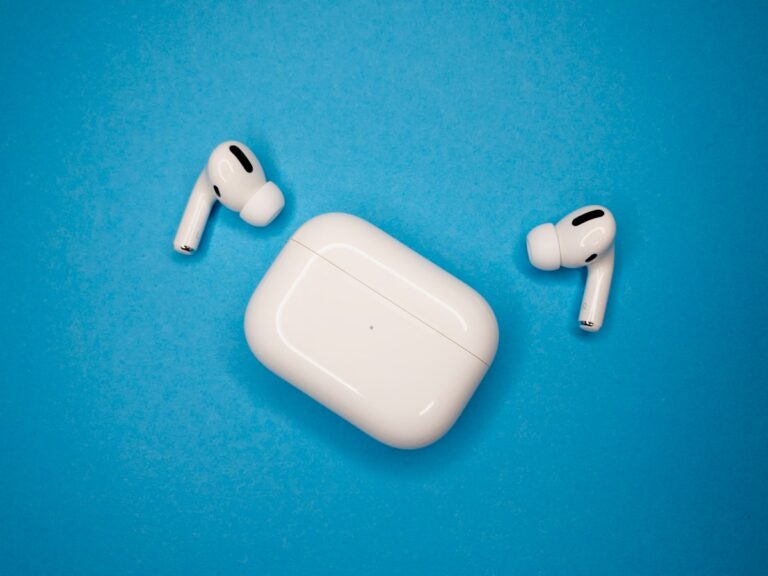
AirPods not connecting? Put AirPods in case, close lid for 30 seconds, then open and try again. Go to iPhone Settings > Bluetooth, forget AirPods, then hold button on case until light flashes white and re-pair. Make sure AirPods and case are charged.
Why Won’t AirPods Connect?
AirPods connection issues come from Bluetooth glitches, low battery, pairing conflicts with other devices, dirty charging contacts, or outdated firmware. The case button can reset the connection.
Method 1: Reset AirPods Connection
Quick reset fixes most issues.
- Put AirPods in charging case
- Close lid for 30 seconds
- Open lid near iPhone
- Wait for popup on screen
- Tap Connect
Method 2: Forget and Re-pair
Fresh pairing clears glitches.
- Settings > Bluetooth
- Tap (i) next to AirPods
- Tap Forget This Device
- Put AirPods in case, open lid
- Hold case button until light flashes white
- Pair when popup appears
Method 3: Check Battery Levels
Dead battery prevents connection.
- Place AirPods in case
- Open lid near iPhone
- Check battery popup
- Charge if below 10%
- Case needs charge too
Method 4: Clean Charging Contacts
Dirty contacts prevent charging.
- Remove AirPods from case
- Clean metal contacts on AirPods
- Clean contacts inside case
- Use dry cotton swab
- Remove any debris or earwax
Method 5: Toggle Bluetooth Off/On
Restart Bluetooth connection.
- Settings > Bluetooth
- Toggle Off
- Wait 10 seconds
- Toggle On
- Try connecting AirPods
Method 6: Restart iPhone
Restart clears Bluetooth issues.
- Hold Side + Volume button
- Slide to power off
- Wait 30 seconds
- Turn iPhone back on
- Try connecting AirPods
Method 7: Factory Reset AirPods
Full reset fixes persistent issues.
- Put AirPods in case, keep lid open
- Hold setup button on back of case
- Hold for 15 seconds
- Light flashes amber then white
- AirPods are reset – pair as new
Method 8: Check for Other Connections
AirPods may connect to other device.
- AirPods connect to last used device
- Check if connected to Mac or iPad
- Disconnect from other devices first
- Or disable Bluetooth on other devices
- Then connect to iPhone
Method 9: Update iPhone Software
Updates fix Bluetooth bugs.
- Settings > General > Software Update
- Download and install if available
- Restart after update
- Try connecting AirPods
- AirPods firmware updates automatically
Method 10: Reset Network Settings
Network reset fixes Bluetooth.
- Settings > General > Transfer or Reset
- Tap Reset > Reset Network Settings
- Enter passcode
- This resets WiFi and Bluetooth
- Re-pair AirPods after reset
FAQ
Why do AirPods connect to wrong device?
AirPods auto-connect to the last device used. If signed into same Apple ID, they switch between devices automatically. To prevent this, disable automatic switching in Bluetooth settings for each device.
Why is only one AirPod connecting?
Single AirPod issues usually mean one is dead or dirty. Check battery on each AirPod individually, clean charging contacts, and try resetting. If one consistently fails, it may need replacement.
How do I know if AirPods are charging?
When AirPods are in case and charging, the case light shows amber. Green means fully charged. If no light appears when opening lid, the case battery is dead and needs charging first.