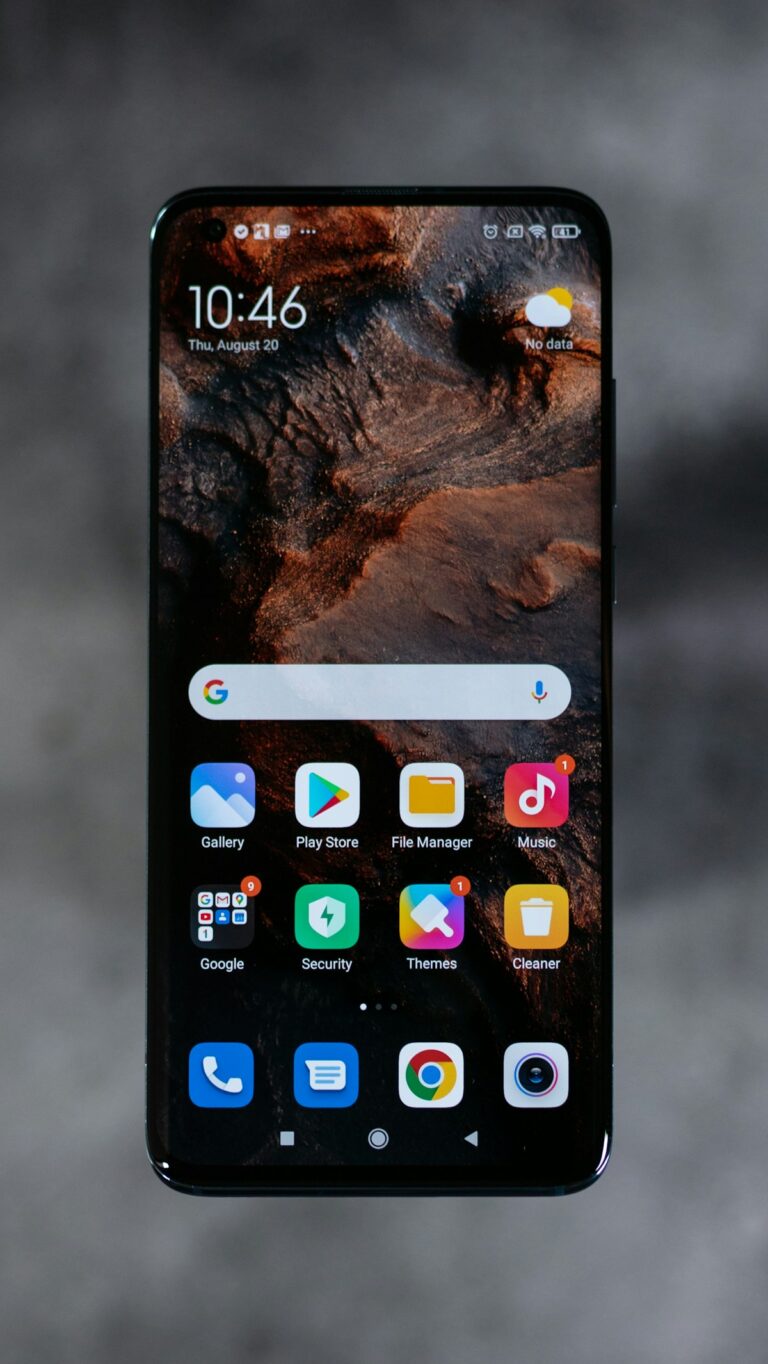
Android Phone Overheating? 10 Fixes That Actually Work
Quick Fix: Close all apps, remove the phone case, and let your phone cool down for 10 minutes away from direct sunlight.
An overheating Android phone is more than uncomfortable to hold – it can throttle performance, drain your battery faster, and even cause permanent damage. I’ve helped many people with overheating phones, and the solution is usually simpler than you’d think. Here’s what actually works.
Why This Happens
Android phones overheat due to processor-intensive apps, prolonged camera or gaming use, charging while using the phone, direct sunlight exposure, or background apps consuming resources. Older batteries and software bugs can also cause excess heat generation.
How to Fix Android Phone Overheating – 10 Solutions
1. Close Background Apps
Apps running in the background generate heat.
- Tap the recent apps button (square icon)
- Swipe away all open apps
- Or tap “Clear all” if available
- Go to Settings > Apps and force stop any apps you don’t need
- Pay attention to games, video apps, and GPS apps
Why this works: Fewer active apps mean less CPU usage and less heat.
2. Remove the Phone Case
Cases trap heat and prevent proper cooling.
- Take off your phone case
- Let the phone sit uncovered for 10 minutes
- Place it on a cool surface (not in a freezer)
- If your case is thick, consider switching to a thinner one
Why this works: Phone cases insulate heat that would otherwise dissipate naturally.
3. Move Out of Direct Sunlight
Sunlight rapidly heats up phones.
- Move your phone out of direct sunlight immediately
- Don’t leave it on car dashboards or near windows
- In hot weather, keep the phone in a bag or pocket when outside
- Wait in shade for the phone to cool before using
Why this works: Direct sunlight can raise phone temperature beyond safe operating limits.
4. Lower Screen Brightness
The display is a major heat source.
- Pull down the notification shade
- Lower the brightness slider significantly
- Enable adaptive brightness to automatically adjust
- Consider enabling dark mode to reduce screen power usage
Why this works: Lower brightness uses less battery and generates less heat.
5. Stop Charging (Especially While Using)
Charging generates heat, using the phone while charging makes it worse.
- If your phone is hot, unplug it immediately
- Wait until it cools before charging again
- Avoid using the phone while charging
- Don’t use fast charging if your phone is already warm
- Use the original charger – third-party chargers may cause excess heat
Why this works: Charging adds heat, and using the phone simultaneously multiplies it.
6. Check for Rogue Apps
Some apps drain battery and CPU continuously.
- Go to Settings > Battery > Battery Usage
- Look for apps using unusually high battery
- Force stop or uninstall suspicious apps
- Update all apps from the Play Store
- Uninstall apps you installed recently before the overheating started
Why this works: Buggy or malicious apps can keep the CPU running at high capacity.
7. Update Your Software
Software bugs can cause overheating.
- Go to Settings > System > System Update
- Download and install any available updates
- Update all apps from the Play Store
- Restart your phone after updating
Why this works: Updates often include fixes for bugs that cause excessive battery drain.
8. Turn Off Unnecessary Features
Features like GPS and Bluetooth generate heat when active.
- Turn off Bluetooth when not using it
- Disable GPS/Location services when not needed
- Turn off WiFi scanning in location settings
- Disable mobile hotspot when not in use
- Turn off NFC
Why this works: Each active radio uses power and generates heat.
9. Limit Gaming and Camera Use
These are the most processor-intensive activities.
- Take breaks during extended gaming sessions
- Lower graphics settings in games
- Avoid recording 4K video for extended periods
- Use airplane mode while gaming to reduce background activity
Why this works: Gaming and camera apps push CPU and GPU to maximum, generating significant heat.
10. Factory Reset (Last Resort)
If nothing else works, start fresh.
- Back up your important data to Google Drive or computer
- Go to Settings > System > Reset options
- Select “Erase all data (factory reset)”
- Follow the prompts
- Set up your phone as new and add apps back gradually
Why this works: A factory reset eliminates any software issues causing excessive heat.
If Nothing Works
If your Android phone continues to overheat after trying everything, the battery may be failing or there could be hardware damage. A swollen battery is dangerous and should be replaced immediately. Visit an authorized service center for diagnosis, especially if the phone is still under warranty.
FAQ
Is it normal for my phone to get warm?
Slight warmth during use is normal, especially during gaming, GPS navigation, or charging. It becomes a concern when it’s too hot to hold comfortably or shows a temperature warning.
Can overheating damage my phone permanently?
Yes, prolonged overheating can damage the battery, reduce its lifespan, and potentially harm other internal components. If your phone consistently overheats, address it quickly.
Should I put my hot phone in the refrigerator?
No! Rapid temperature changes can cause condensation inside the phone, leading to water damage. Let it cool naturally in a room-temperature environment.
Wrapping Up
Most Android overheating issues are fixed by closing apps, removing the case, and letting the phone cool down. Check for rogue apps using too much battery and keep your software updated. If overheating persists, the battery may need replacement. Good luck keeping your phone cool!