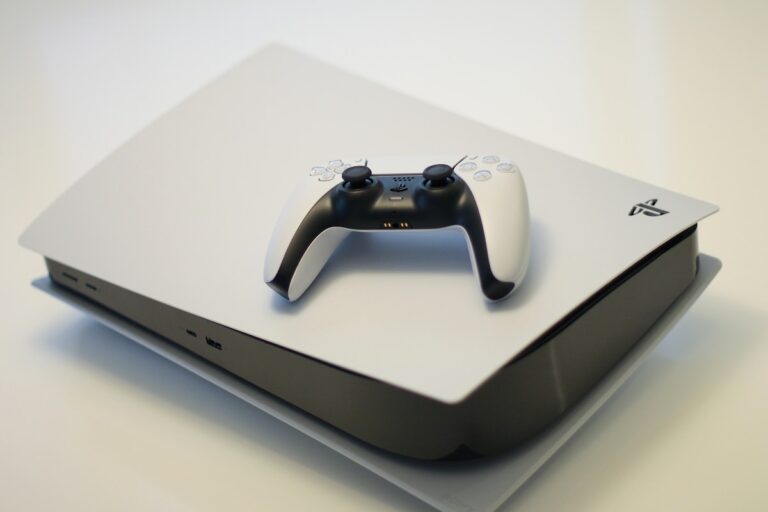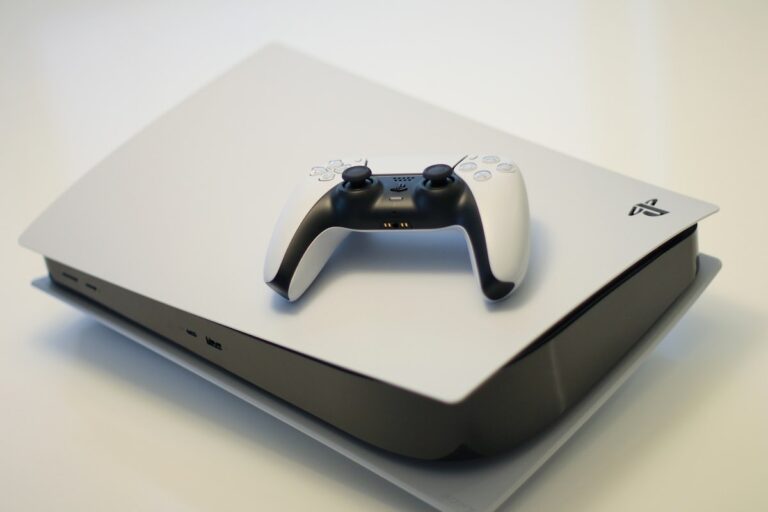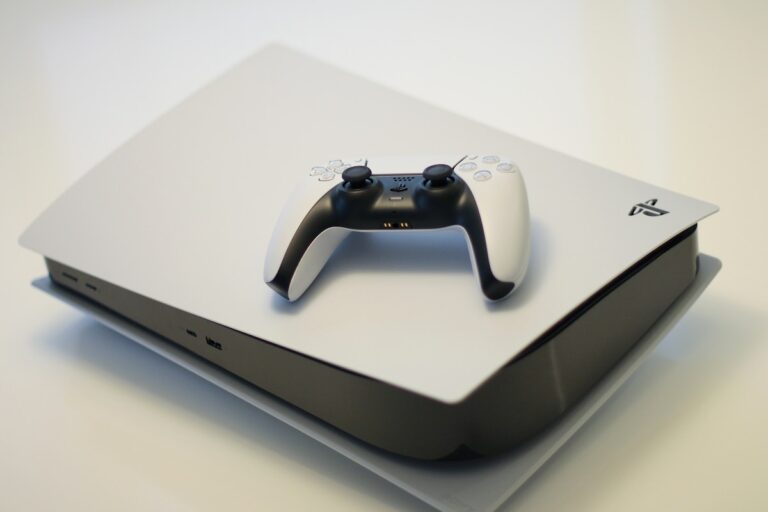
PS5 Controller Not Connecting? 10 Fixes That Actually Work
Quick Fix: Connect your PS5 controller to the console with a USB cable and press the PS button to pair. If that doesn’t work, reset the controller using the small hole on the back.
A PS5 controller that won’t connect ruins your gaming session before it starts. I’ve dealt with this issue many times, and it’s usually an easy fix. Here’s what actually works to get your DualSense paired.
Why This Happens
PS5 controllers fail to connect due to Bluetooth interference, low battery, firmware issues, or the controller being paired to another device. Sometimes the controller’s internal connection just needs to be reset. USB cable quality also matters for wired pairing.
How to Fix PS5 Controller Not Connecting – 10 Solutions
1. Connect With USB Cable
A wired connection bypasses Bluetooth issues.
- Get a USB-C to USB-A cable (or USB-C to USB-C if using front port)
- Connect the controller to the PS5
- Press the PS button on the controller
- Wait for the light bar to turn solid (indicating connection)
- You can disconnect the cable once paired
Why this works: USB connection forces a direct pairing and charges the controller simultaneously.
2. Reset the Controller
The reset button clears connection issues.
- Turn off your PS5
- Find the small hole on the back of the controller (near the L2 button)
- Use a paperclip or pin to press and hold the button inside for 5 seconds
- Release the button
- Connect controller via USB and press PS button to re-pair
Why this works: Resetting clears all stored pairing data and resets Bluetooth.
3. Charge Your Controller
Low battery prevents proper connection.
- Connect the controller to the PS5 or a USB charger
- Look for the orange pulsing light indicating charging
- Charge for at least 30 minutes
- Try connecting again while still plugged in
Why this works: Controllers with critically low battery may not have enough power to establish Bluetooth.
4. Use a Different USB Cable
Not all USB cables support data transfer.
- Try the cable that came with your PS5
- Use a cable that supports data transfer, not just charging
- Try both front and back USB ports on the PS5
- Check the cable for damage
Why this works: Some cheap cables only carry power, not data needed for pairing.
5. Remove Bluetooth Interference
Other devices can interfere with Bluetooth signals.
- Turn off nearby Bluetooth devices (headphones, speakers, phones)
- Move the controller closer to the PS5
- Remove obstructions between controller and console
- Move WiFi routers or other electronics away from the PS5
Why this works: Bluetooth operates on 2.4GHz which can be crowded with interference.
6. Update Controller Firmware
Firmware updates fix connection bugs.
- Connect the controller via USB
- On PS5, go to Settings > Accessories > Controllers
- Select “Wireless Controller Device Software”
- If an update is available, install it
- Wait for the update to complete
Why this works: Sony releases firmware updates that fix connectivity issues.
7. Restart Your PS5
A full restart clears temporary connection issues.
- Press the power button on the PS5 until it beeps twice (about 7 seconds)
- Wait for complete shutdown (no lights)
- Unplug the power cord
- Wait 60 seconds
- Plug back in and turn on
- Try connecting the controller via USB
Why this works: A full power cycle resets the PS5’s Bluetooth system.
8. Clear Paired Devices
Remove old controller pairings that may cause conflicts.
- Go to Settings > Accessories > General
- Select “Bluetooth Accessories”
- Delete any old controllers you no longer use
- Reset your current controller (step 2 above)
- Re-pair via USB
Why this works: Too many paired devices can cause connection conflicts.
9. Check if Controller is Paired Elsewhere
The controller might be trying to connect to another device.
- Check if the controller is paired to a PC, phone, or another PS5
- On the other device, forget/unpair the controller
- Reset the controller using the back button
- Re-pair to your PS5 via USB
Why this works: Controllers can only be paired to one device at a time.
10. Rebuild PS5 Database
Database issues can affect accessory connections.
- Turn off PS5 completely
- Hold power button until you hear a second beep (7 seconds)
- Connect controller via USB
- Press PS button to activate
- Select “Rebuild Database” from Safe Mode menu
- Wait for process to complete
Why this works: Rebuilding the database fixes corrupted system data.
If Nothing Works
If your controller still won’t connect, it may have a hardware defect. Try the controller on a friend’s PS5 to test. If it’s under warranty, contact PlayStation Support for replacement. You can also try pairing it to a PC to determine if the issue is the controller or your PS5.
FAQ
Why does my PS5 controller keep disconnecting?
Random disconnections usually indicate low battery, Bluetooth interference, or a failing controller. Keep the controller charged and minimize wireless interference. If it keeps happening, the battery or Bluetooth module may be failing.
Can I use my PS4 controller on PS5?
Yes, but only for PS4 games on PS5. PS5 games require the DualSense controller. Connect the PS4 controller via USB and press the PS button to pair.
Why is my PS5 controller flashing blue and not connecting?
Blue flashing means the controller is searching for a device to pair with. Connect via USB cable and press the PS button to pair. If it keeps flashing, reset the controller using the back button.
Wrapping Up
Most PS5 controller connection issues are solved by using a USB cable to re-pair or resetting the controller with the back button. Make sure the battery is charged and use a data-capable USB cable. Good luck getting back to gaming!