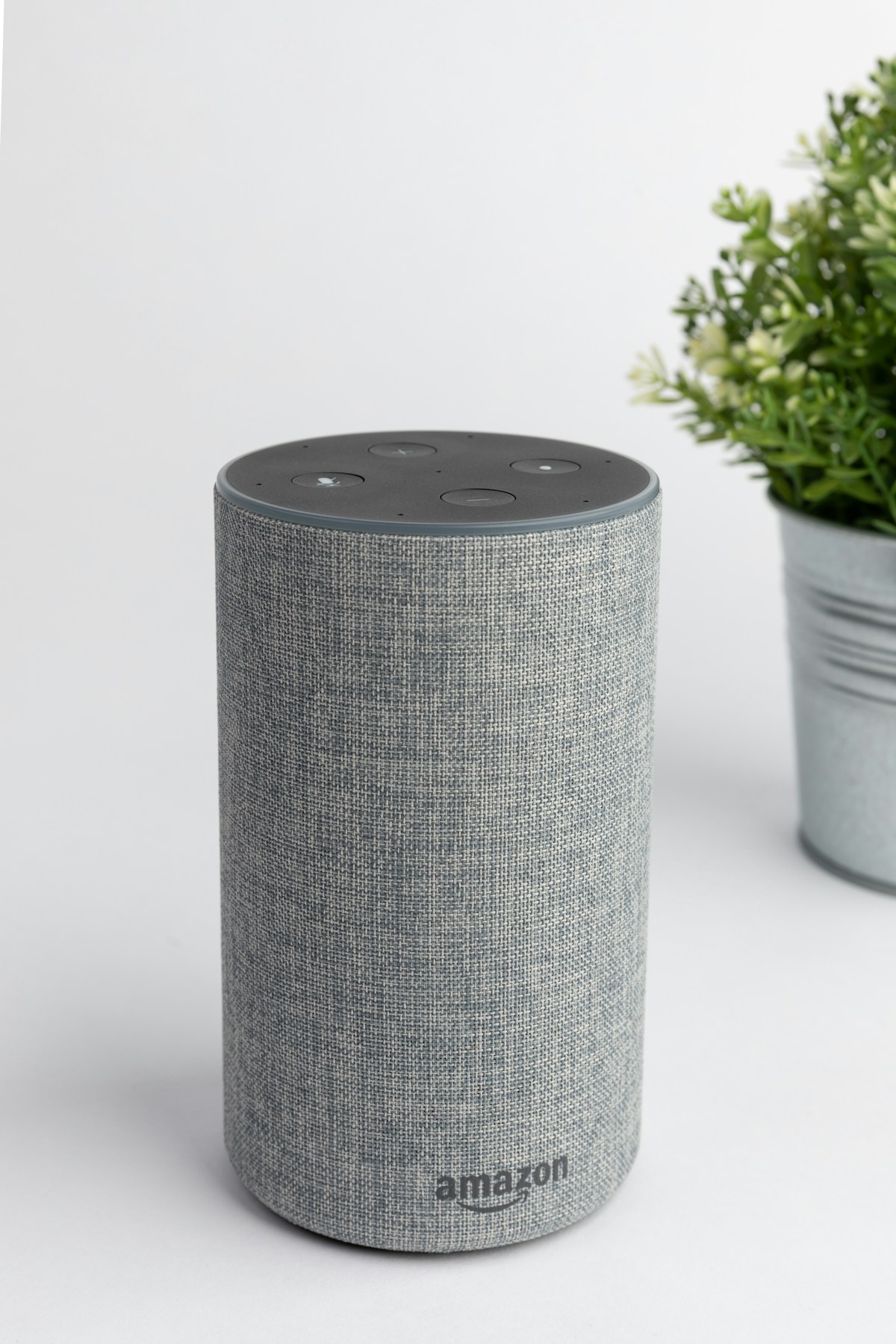
Echo Dot Not Connecting to WiFi? 9 Ways to Fix It
**Quick Fix:** Restart your Echo Dot by unplugging it for 30 seconds, then try connecting again through the Alexa app.
I’ve had my Echo Dot randomly refuse to connect to WiFi more times than I can count. It’s frustrating when your smart speaker just sits there with that spinning orange light. Here’s what actually works.
Why This Happens
Your Echo Dot can lose WiFi connection for several reasons. The most common ones are router issues, too many devices on your network, or the Echo being too far from your router. Sometimes a simple software glitch causes the problem.
Password changes, router firmware updates, or network congestion can also knock your Echo offline.
How to Fix Echo Dot Not Connecting to WiFi – 9 Solutions
1. Restart Your Echo Dot
The classic fix works most of the time.
- Unplug your Echo Dot from the power outlet
- Wait 30 seconds
- Plug it back in
- Wait for the light ring to turn blue, then orange
- Open the Alexa app and try connecting again
Why this works: A restart clears temporary glitches in the device’s memory and forces a fresh connection attempt.
2. Restart Your Router
If the Echo restart didn’t work, your router might be the issue.
- Unplug your router from power
- Wait 60 seconds (this clears the router’s cache)
- Plug it back in
- Wait 2-3 minutes for it to fully boot up
- Try connecting your Echo Dot again
Why this works: Routers can get overloaded and stop accepting new connections. A restart refreshes everything.
3. Move Your Echo Closer to the Router
Distance and obstacles kill WiFi signals.
- Pick up your Echo Dot
- Move it to the same room as your router
- Try the setup process again
- Once connected, you can move it back (within reason)
Why this works: Walls, floors, and appliances weaken WiFi signals. Getting closer ensures a strong connection.
4. Forget and Reconnect the Network
Sometimes the saved WiFi info gets corrupted.
- Open the Alexa app on your phone
- Tap Devices at the bottom
- Select Echo & Alexa
- Choose your Echo Dot
- Tap WiFi Network
- Select “Change” and follow the prompts to reconnect
Why this works: This clears old connection data and creates a fresh network profile.
5. Check Your WiFi Password
A wrong password is a common culprit, especially after router resets.
- On your phone, go to Settings > WiFi
- Connect to your home network
- Verify the password works
- Use this exact password in the Alexa app setup
Why this works: Even one wrong character prevents connection. Make sure caps lock isn’t the issue.
6. Switch to 2.4GHz Network
Echo Dots work better on 2.4GHz than 5GHz.
- Log into your router settings (usually 192.168.1.1)
- Find your WiFi settings
- Make sure 2.4GHz network is enabled
- Connect your Echo to the 2.4GHz network (often has “2.4” in the name)
Why this works: The 2.4GHz band has better range and wall penetration than 5GHz, which Echo Dots prefer.
7. Check for Router MAC Filtering
Some routers block unknown devices.
- Log into your router admin panel
- Look for MAC Filtering or Access Control
- If enabled, add your Echo Dot’s MAC address
- Find the MAC address in Alexa app > Devices > Echo Dot > About
Why this works: MAC filtering only allows approved devices to connect. Your Echo needs to be on the list.
8. Factory Reset Your Echo Dot
When nothing else works, start fresh.
For Echo Dot (3rd/4th Gen):
- Press and hold the Action button for 25 seconds
- The light ring turns orange
- Wait for it to enter setup mode
- Set it up again through the Alexa app
For Echo Dot (2nd Gen):
- Use a paperclip to press the Reset button
- Hold for 25 seconds
- Wait for setup mode
Why this works: A factory reset clears all settings and lets you start completely fresh.
9. Update Your Router Firmware
Outdated router software can cause compatibility issues.
- Log into your router admin panel
- Look for Firmware Update or Software Update
- Download and install any available updates
- Restart your router after updating
- Try connecting your Echo again
Why this works: Router updates often fix bugs that affect device connectivity.
If Nothing Works
If you’ve tried everything and your Echo Dot still won’t connect:
- Contact Amazon support through the Alexa app
- Check if your WiFi network is working with other devices
- Your Echo Dot might have a hardware defect (especially if it’s new)
- Try a different power adapter to rule out power issues
Related Articles
- Ring Doorbell Not Connecting to WiFi? 10 Fixes That Work
- Peloton Screen Not Working? 10 Fixes
- Nest Thermostat Not Heating: 10 Ways to Fix It
FAQ
Why does my Echo Dot keep disconnecting from WiFi?
Frequent disconnections usually mean weak signal strength, router issues, or interference from other devices. Try moving your Echo closer to the router or switching to the 2.4GHz band.
Can Echo Dot connect to 5GHz WiFi?
Yes, newer Echo Dots support 5GHz networks, but 2.4GHz is more reliable for smart home devices. The 5GHz band is faster but has shorter range and worse wall penetration.
How do I know if my Echo Dot is connected to WiFi?
Ask “Alexa, are you connected to the internet?” or check the Alexa app under Devices > Echo & Alexa > your device. A solid blue light ring during wake word detection means it’s connected.
Wrapping Up
Most Echo Dot WiFi issues get fixed by restarting the device and router. If that doesn’t work, try forgetting the network and reconnecting through the Alexa app. The 2.4GHz network switch fixes it for a lot of people too. Good luck getting Alexa back online.



One Comment