Xbox Controller Not Connecting? 10 Quick Fixes
Quick Fix
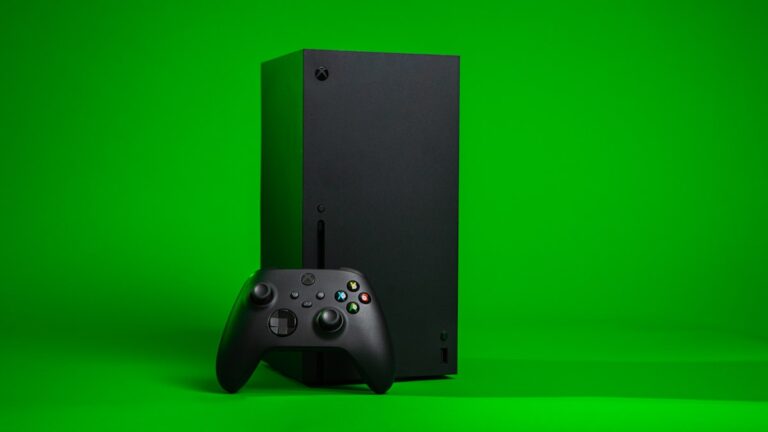
Xbox controller not connecting? Press and hold the sync button on controller until Xbox button flashes, then press sync button on console. Replace batteries if low. Try connecting with USB cable directly. Make sure controller firmware is updated.
Why Won’t Xbox Controller Connect?
Xbox controller connection issues come from dead batteries, sync problems, Bluetooth interference, outdated firmware, or too many controllers paired. Wireless range is about 20 feet from console.
Method 1: Re-sync Controller
Sync wirelessly to console.
- Turn on Xbox console
- Press sync button on Xbox (near USB)
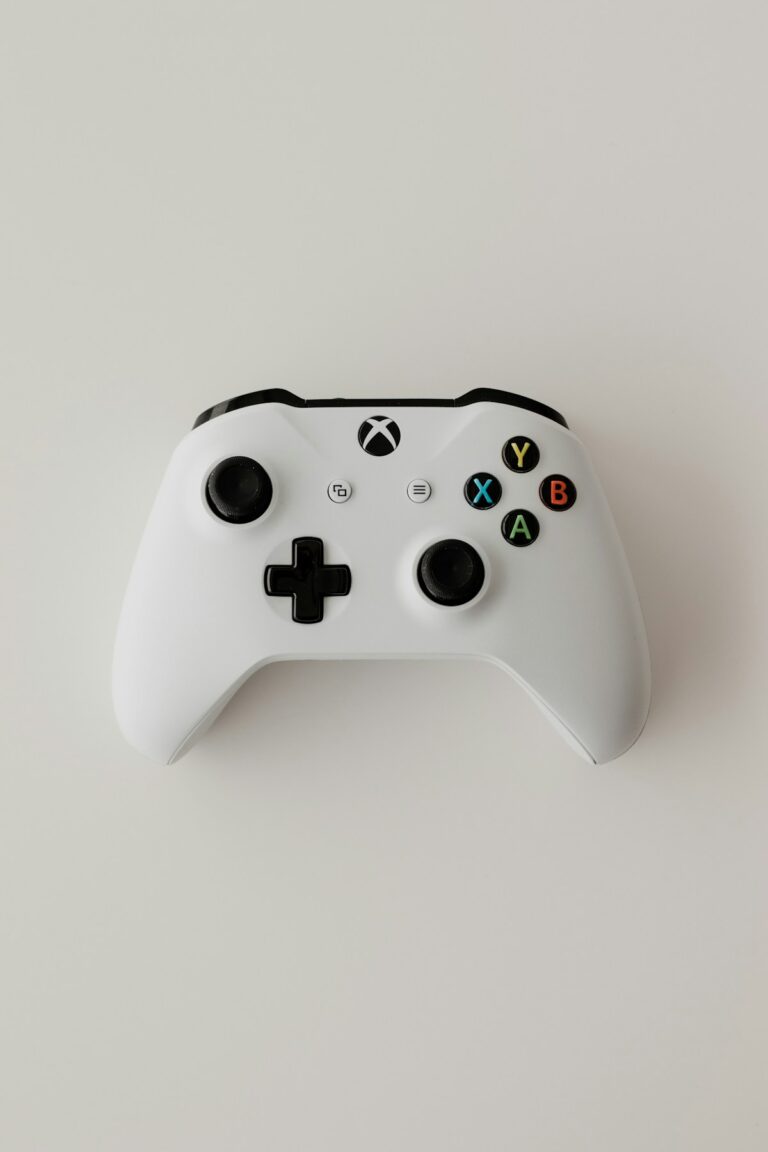
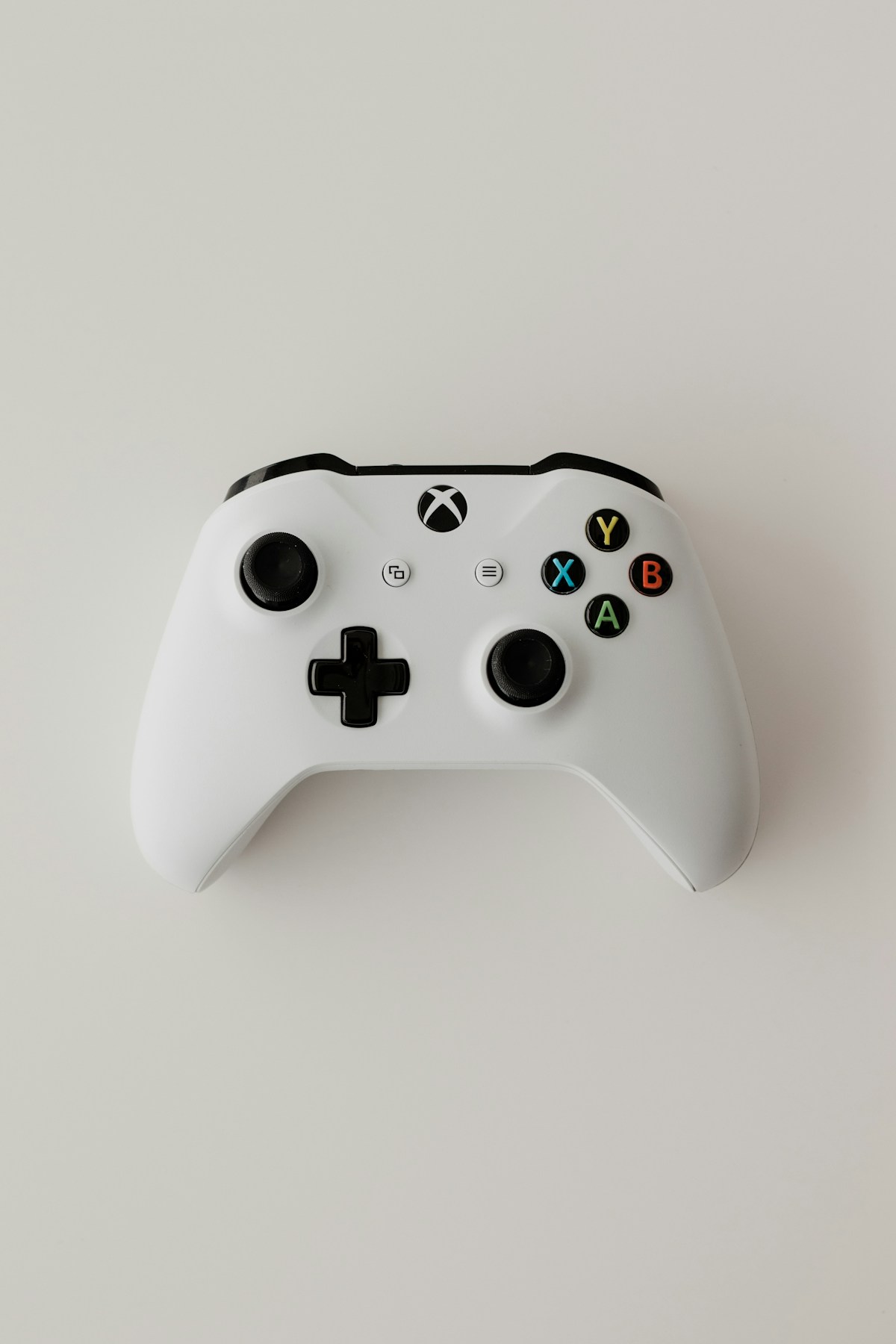
- Hold sync button on controller (top)
- Hold until Xbox button flashes rapidly
- They should connect within seconds
Method 2: Replace Batteries
Dead batteries common cause.
- Remove battery cover
- Insert fresh AA batteries
- Check polarity (+/-)
- Or charge rechargeable battery pack
- Try connecting again
Method 3: Use USB Cable
Wired connection bypasses wireless.
- Get micro-USB or USB-C cable
- Connect controller to console
- Controller should work immediately
- If works wired, wireless has issue
- Try re-syncing wirelessly after
Method 4: Power Cycle Console
Full restart clears glitches.
- Hold Xbox power button for 10 seconds
- Console shuts down completely
- Unplug power for 30 seconds
- Plug back in and turn on
- Try connecting controller
Method 5: Update Controller Firmware
Outdated firmware causes issues.
- Connect controller via USB cable
- Settings > Devices & connections > Accessories
- Select controller
- Check for firmware update
- Install if available
Method 6: Disconnect Other Controllers
Too many controllers paired.
- Xbox supports 8 controllers maximum
- Turn off other controllers
- Or remove old pairings
- Settings > Devices > Connections
- Remove unused controllers
Method 7: Connect to PC via Bluetooth
For PC Bluetooth connection.
- Hold sync button on controller 3 seconds
- Xbox button flashes rapidly
- PC Settings > Bluetooth & devices
- Add device > Bluetooth
- Select Xbox controller
Method 8: Use Xbox Wireless Adapter
Adapter better than Bluetooth for PC.
- Plug Xbox Wireless Adapter into PC
- Hold adapter button
- Hold controller sync button
- Lower latency than Bluetooth
- Supports multiple controllers
Method 9: Check for Interference
Wireless interference blocks signal.
- Move away from WiFi routers
- Move away from USB 3.0 devices
- Reduce distance to console
- Remove obstacles between controller and console
- Turn off other wireless devices
Method 10: Factory Reset Controller
Reset clears all pairings.
- No official factory reset
- Remove batteries for 1 minute
- Hold sync button while reinserting
- Or pair as new on different console
- Re-sync to your console fresh
Related Articles
- Xbox Controller Not Connecting to PC – 13 Methods to Fix It
- PS5 Not Turning On? 10 Proven Fixes
- Xbox One Won’t Turn On? 10 Proven Fixes
FAQ
Why does Xbox controller keep disconnecting?
Frequent disconnections indicate low battery, interference, or failing controller. Replace batteries, move closer to console, remove interfering devices. If persists with fresh batteries and wired, controller may be defective.
Can Xbox controller connect to phone?
Yes, Xbox controllers connect to phones via Bluetooth. Hold sync button until flashing, then pair in phone Bluetooth settings. Works with Xbox Game Pass, Steam Link, and many mobile games.
How do I know if Xbox controller is charging?
When charging via USB with rechargeable battery pack, the Xbox button pulses slowly. When fully charged, light stays solid. With regular AA batteries, they don’t charge via USB.