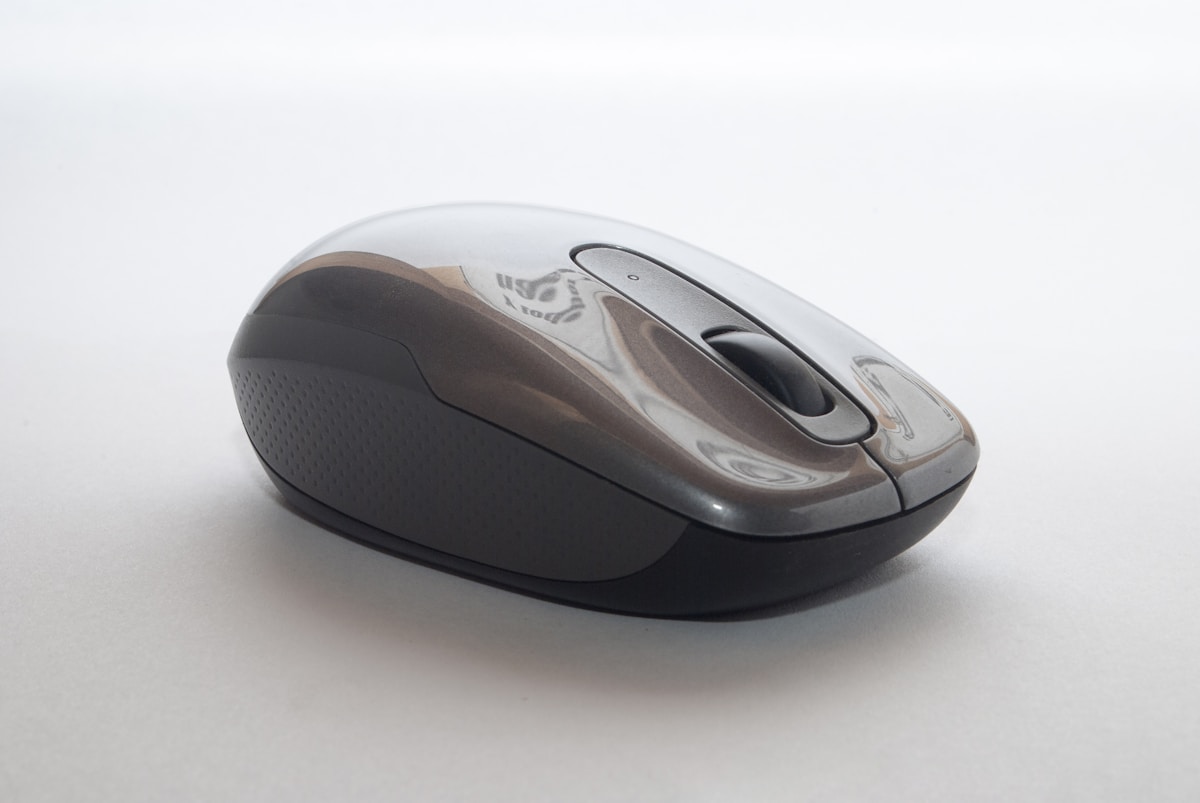
Logitech Mouse Not Working? 10 Quick Fixes
Quick Fix
Logitech mouse not working? Check the power switch on the bottom of the mouse – make sure it’s ON. For wireless mice, try a different USB port for the receiver, or replace batteries. For Bluetooth mice, unpair and re-pair in Windows Bluetooth settings. Try the mouse on a different surface (not glass).
Why Won’t Logitech Mouse Work?
Logitech mouse issues come from dead batteries, USB receiver problems, Bluetooth pairing issues, driver conflicts, or surface incompatibility. Wireless mice have more potential failure points than wired ones.
Method 1: Check Power Switch
Mouse may be turned off.
- Flip mouse over
- Find power switch
- Ensure it’s set to ON
- Some mice have switch under battery cover
- LED should blink when turned on
Method 2: Replace Batteries
Dead batteries are common cause.
- Open battery compartment
- Remove old batteries
- Insert fresh batteries (check polarity)
- Use quality alkaline batteries
- Turn mouse on and test
Method 3: Try Different USB Port
USB port may be faulty.
- Unplug Logitech receiver
- Plug into different USB port
- Try ports directly on computer (not hub)
- Wait for Windows to detect
- Test mouse movement
Method 4: Re-pair Bluetooth Mouse
Bluetooth connection may be lost.
- Windows Settings > Bluetooth & devices
- Find Logitech mouse and Remove device
- Turn mouse off then on
- Press pairing button on mouse
- Click Add device > Bluetooth
- Select mouse when it appears
Method 5: Re-sync with Unifying Receiver
Receiver lost connection to mouse.
- Download Logitech Unifying Software
- Install and open
- Click Advanced > Pair new device
- Turn mouse off and on
- Mouse should pair within seconds
Method 6: Update Logitech Drivers
Outdated drivers cause issues.
- Download Logitech G Hub or Options+
- Install software
- Let it detect your mouse
- Install any available updates
- Restart computer
Method 7: Try Different Surface
Some surfaces don’t work.
- Glass and reflective surfaces cause issues
- Try mouse on mouse pad
- Use opaque, non-reflective surface
- Paper works in a pinch
- Test if mouse tracks better
Method 8: Clean the Sensor
Dirty sensor affects tracking.
- Turn mouse over
- Locate optical sensor (red/laser light)
- Blow away dust with compressed air
- Wipe gently with dry cloth
- Remove any hair or debris
Method 9: Check Device Manager
Windows may have driver issues.
- Right-click Start > Device Manager
- Expand Mice and other pointing devices
- Look for yellow warning icon
- Right-click mouse > Uninstall device
- Unplug receiver, plug back in
- Windows reinstalls driver
Method 10: Test on Another Computer
Determine if mouse is faulty.
- Try mouse on different computer
- If works elsewhere, issue is with your PC
- If doesn’t work anywhere, mouse is faulty
- Check Logitech warranty
Related Articles
- Windows 11 Slow Startup? 10 Quick Fixes
- Keyboard Not Typing? 10 Quick Fixes
- Dell Monitor No Signal? 10 Easy Fixes
FAQ
Why does my Logitech mouse keep disconnecting?
Frequent disconnections indicate low battery, USB power saving, or interference. Replace batteries, disable USB selective suspend in Windows power options, and keep receiver away from USB 3.0 ports which cause interference.
How do I know if Logitech receiver is broken?
If the receiver doesn’t show in Device Manager when plugged in, it may be dead. Try different USB ports first. If still not detected, try borrowing another Unifying receiver – they’re interchangeable between devices.
Why is my Logitech mouse lagging?
Lag happens with low battery, wireless interference, or high CPU usage. Replace batteries, move receiver closer to mouse (use USB extender), close CPU-heavy programs, and try 2.4GHz connection instead of Bluetooth.



![How to Fix Windows Update Error 0x80070643 [8 Solutions]](https://myerrorfix.com/wp-content/uploads/2026/01/windows-update-large-768x576.jpg)