HomePod Not Responding? 10 Easy Fixes
Quick Fix
HomePod not responding to “Hey Siri”? Check if it’s muted: look for glowing top – touch to unmute. Ensure “Listen for Hey Siri” is enabled in Home app. Restart HomePod by unplugging for 10 seconds. Also verify your WiFi is working and HomePod is connected to the same network as your iPhone.
Why Won’t HomePod Respond?
HomePod stops responding due to disabled “Hey Siri,” WiFi disconnection, muted state, software glitches, or account issues. HomePod requires constant internet connection to process voice commands through Apple’s servers.
Method 1: Check If Muted
HomePod may be muted.
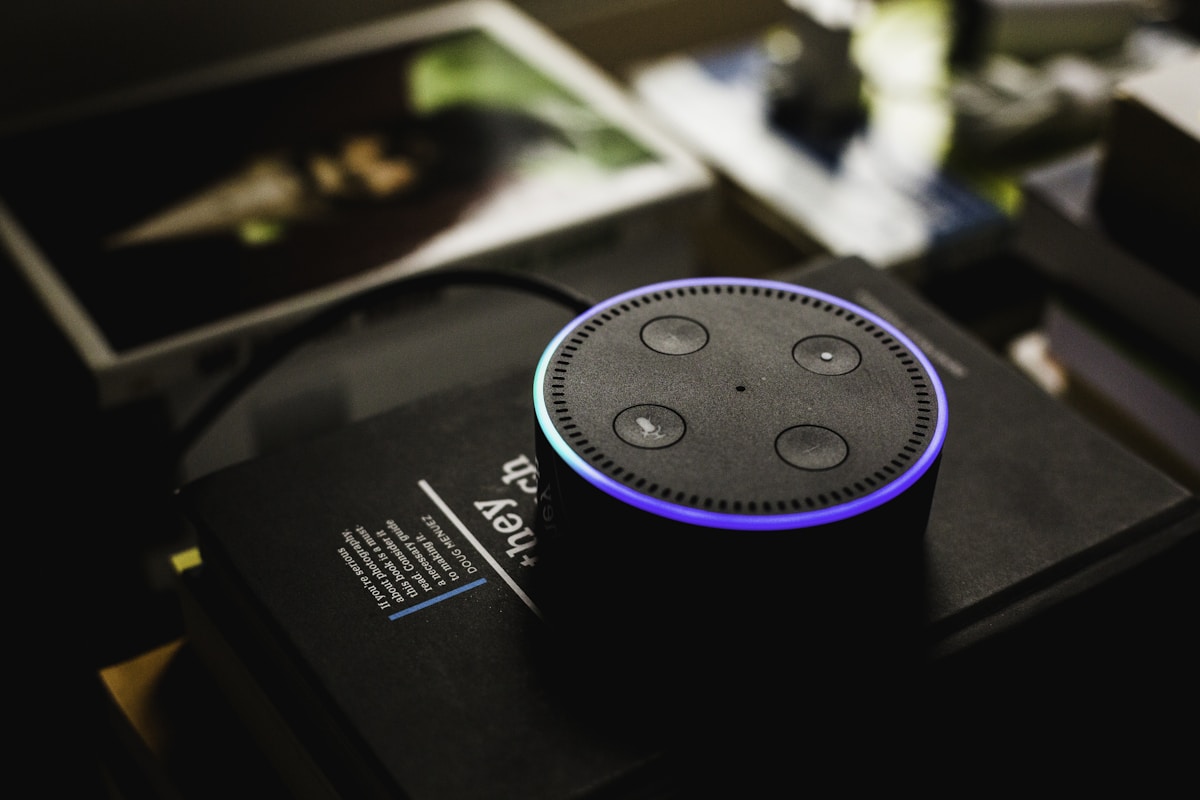
- Look at top of HomePod
- If no light when speaking, it may be muted
- Touch and hold top to unmute
- Or say “Hey Siri, unmute”
- Check volume isn’t at zero
Method 2: Restart HomePod
Reboot clears glitches.
- Unplug HomePod from power
- Wait 10 seconds
- Plug back in
- Wait for chime (about 30 seconds)
- Try “Hey Siri”
Method 3: Check Hey Siri Settings
Siri may be disabled.
- Open Home app on iPhone
- Long-press HomePod
- Tap Settings (gear icon)
- Ensure “Listen for Hey Siri” is On
- Check “Touch and Hold for Siri” is On
Method 4: Check WiFi Connection
HomePod needs internet.
- Verify your WiFi is working
- HomePod must be on same network as iPhone
- Restart your router if needed
- Check Home app shows HomePod connected
Method 5: Update HomePod Software
Updates fix bugs.
- Open Home app
- Tap Home icon top left
- Tap Home Settings > Software Update
- Install if available
- HomePod will restart after update
Method 6: Reset Network Settings
Fix connection issues.
- This requires resetting HomePod
- In Home app, remove HomePod
- Restart router
- Set up HomePod again
- Connect to WiFi during setup
Method 7: Check Apple ID
Account issues affect functionality.
- Ensure iPhone is signed into Apple ID
- Home app > HomePod settings
- Check Primary User is set
- Personal Requests needs your account linked
Method 8: Reduce Background Noise
HomePod may not hear you.
- Turn off TV or music when speaking
- Move closer to HomePod
- Speak clearly at normal volume
- Check nothing is covering HomePod top
Method 9: Reset HomePod
Factory reset as last resort.
- Unplug HomePod
- Wait 5 seconds, plug back in
- Immediately touch and hold top
- Keep holding through spinning white light
- Wait for three beeps, then release
- Set up as new in Home app
Method 10: Contact Apple Support
Hardware failure needs service.
- Check warranty at checkcoverage.apple.com
- Enter HomePod serial number
- HomePod has 1-year warranty
- AppleCare+ available for extended coverage
- Genius Bar can diagnose hardware issues
Related Articles
- iPhone Touchscreen Not Working? 10 Ways to Fix It
- AirPods Pro Not Charging in Case? 10 Easy Fixes
- iPhone Hotspot Not Working? 10 Quick Fixes
FAQ
Why does HomePod light up but not respond?
If HomePod shows lights but doesn’t process commands, it may have WiFi issues or account problems. Check internet connection, verify Apple ID is linked, and ensure “Hey Siri” is enabled in Home app settings.
Why does HomePod only respond sometimes?
Inconsistent response indicates WiFi issues or background noise interference. Check signal strength, reduce ambient noise, and ensure HomePod isn’t too close to walls or corners that might affect microphone performance.
Can HomePod work without internet?
No, HomePod requires internet for all Siri commands. Voice processing happens on Apple servers. Without WiFi, HomePod can only play audio via AirPlay from a device on the same local network.