Xbox One Won’t Turn On? 10 Proven Fixes
Quick Fix
Xbox One won’t turn on? Power cycle it: Hold the Xbox button on the console for 10 seconds until it shuts off completely. Unplug the power cord, wait 30 seconds, plug back in, and press Xbox button. The power brick light should be orange (standby) or white (on). If no light, try a different outlet.
Why Won’t Xbox One Turn On?
Xbox One fails to turn on due to power supply issues, overheating protection, controller problems, internal hardware failure, or power surge damage. The power supply brick has an indicator light that helps diagnose the problem.
Method 1: Full Power Cycle
Clear the cache and reset power systems.
- Hold Xbox button on console for 10 seconds
- Console will shut down completely
- Unplug power cord from back of Xbox
- Wait 30 seconds
- Plug power cord back in
- Press Xbox button to turn on
- You should hear the startup sound
Method 2: Check Power Brick (Original Xbox One)
The power brick indicates power status.
- White/Orange light: Power supply working
- No light: Power supply issue
- Orange light blinking: Power supply problem
- Check light on power brick
- If no light, try different wall outlet
- Unplug both ends of power cord, wait 10 seconds
- Plug directly into wall (not power strip)
Method 3: Try Different Outlet
Outlet may not be providing power.
- Unplug Xbox from current outlet
- Plug into a different wall outlet
- Avoid power strips, surge protectors initially
- Test outlet with another device first
- Try turning on Xbox
Method 4: Check Power Cord Connections
Loose connections prevent power.
- Unplug power cord from Xbox
- Unplug from wall/brick
- Inspect cord for damage
- Plug firmly into Xbox (should click)
- Plug firmly into outlet
- Try turning on
Method 5: Use Controller to Turn On
Console button may be faulty.
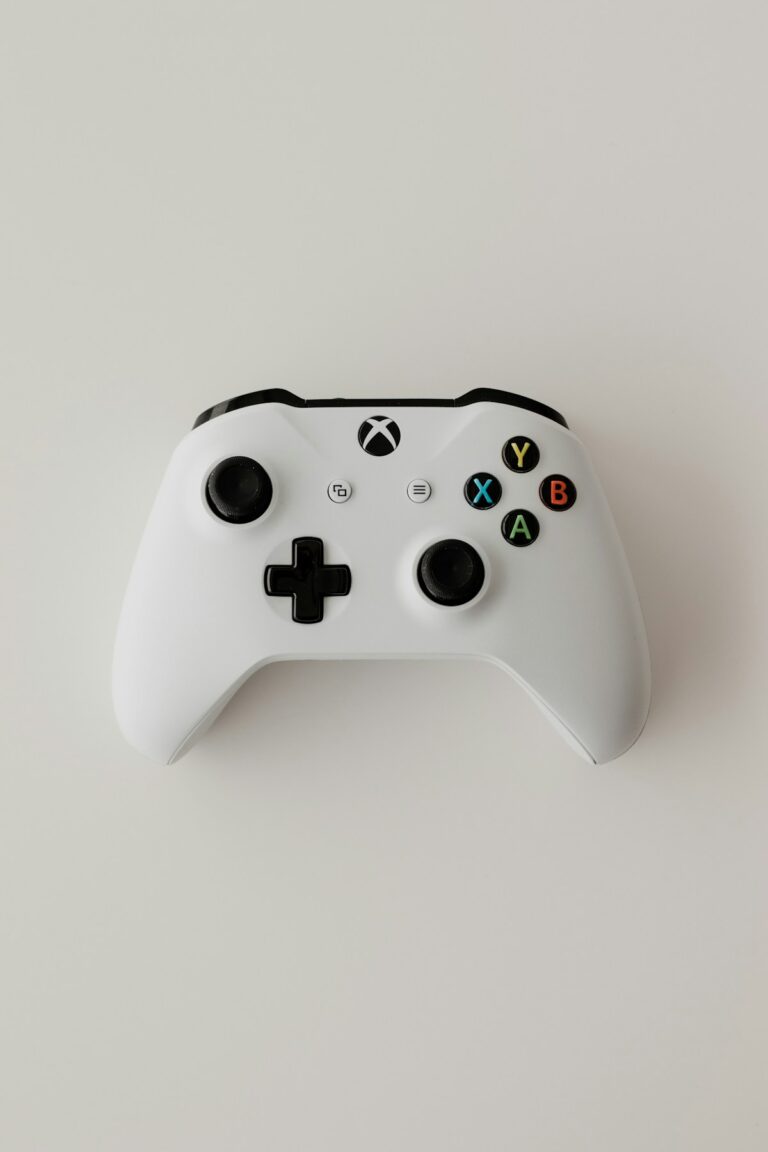
- Connect controller via USB cable
- Press Xbox button on controller
- Hold for a few seconds
- If Xbox turns on, console button may be broken
Method 6: Check for Overheating
Xbox shuts down to prevent heat damage.
- Feel if Xbox is hot
- Ensure ventilation isn’t blocked
- Remove from enclosed space
- Wait 30+ minutes to cool down
- Clear dust from vents
- Try turning on
Method 7: Reset Internal Power Supply
Internal PSU may need reset (Xbox One S/X).
- Unplug power cord
- Press and hold Xbox button for 10 seconds
- Press and release Bind + Eject buttons together
- While holding those, press Xbox button
- Hold all three for 10-15 seconds
- Plug in and try turning on
Method 8: Try Without Hard Drive
External drives can prevent startup.
- Disconnect any external hard drives
- Remove any discs from drive
- Unplug all USB devices
- Try turning on Xbox
- If it works, reconnect devices one by one
Method 9: Check HDMI Connection
Xbox may be on but no display.
- Check HDMI cable is firmly connected
- Try different HDMI port on TV
- Try different HDMI cable
- Listen for startup sound even without picture
- If sound but no picture, it’s a display issue not power
Method 10: Contact Xbox Support
Hardware failure may require repair.
- Check warranty status at support.xbox.com
- Xbox One original: power brick can be replaced
- Xbox One S/X: internal PSU requires service
- Consider professional repair for out-of-warranty
Related Articles
- Nintendo Switch Won’t Charge? 10 Proven Fixes
- Xbox Controller Not Connecting? 10 Quick Fixes
- PS4 Controller Not Connecting? 10 Fixes
FAQ
Why does my Xbox beep but not turn on?
A beep without startup usually indicates the console is receiving power but has an internal issue. Try a full power cycle. If beeping continues without turning on, there may be a hardware problem requiring repair.
Can a power surge damage Xbox One?
Yes, power surges can damage the power supply or internal components. This is why Xbox won’t turn on after storms. The power brick (original Xbox One) may need replacement, or internal PSU (S/X) may be damaged.
How do I know if my Xbox power supply is bad?
For original Xbox One: check the power brick light. No light or blinking orange means it’s faulty. For Xbox One S/X: if all troubleshooting fails and console won’t respond at all, the internal power supply may have failed.